 TechVerge
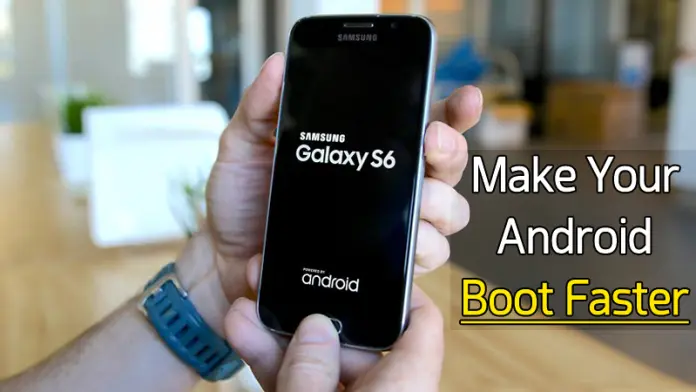
Does your Android phone take forever to turn on?
When I first wrote this in 2016, I had just flashed a custom ROM, and it took a long time to boot. So I shared a build.prop trick that was supposed to make Android boot faster.
I don't recommend that trick anymore. It needed a rooted phone and a root file explorer, and on a modern phone, editing system files can stop it from booting at all.
I've rewritten this guide for today's phones. It covers why your phone boots slowly and what actually helps, with no root needed.
Also Read: How to Speed Up Your Android Phone (No Root Needed)
TL;DR
- Stop apps from starting themselves: restrict the background battery use of apps you don't need running. This is the closest thing to a real "boot faster" setting.
- Clear out the clutter: uninstall unused apps and keep more than 10% of your storage free.
- Update everything: Android and your apps, since some bugs slow your phone down.
- Find a problem app: if the slowdown started suddenly, use safe mode to find the culprit.
- Skip the build.prop trick: it's not an official setting, and editing system files can stop your phone from booting.
Why Does My Android Phone Boot Slowly?
When you buy a new phone, it starts up fast. A year later, it doesn't.
Here's why.
Apps That Start With Your Phone
When your phone finishes starting up, Android tells your apps. Many of them use that moment to start themselves and get to work.
The more apps you have, the more of them want to start at the same time. That was true in 2016, and it's still true now.
The First Boot After an Update or a New ROM
This is the one I ran into in 2016.
The first start after a big update, or after flashing a new ROM, takes longer, because Android has extra work to do.
Older Android versions compiled every app ahead of time, so a system update could keep your phone busy for a long while. Google's Android runtime docs say the newer JIT compiler speeds up app and system updates, so that wait is much shorter now.
So don't panic if the first boot after an update is slow. The next one should be back to normal.
Your Storage Is Almost Full
Google says your phone can start having issues when less than 10% of its storage is free.
A Problem App
If your phone suddenly got slow to start, or it restarts by itself, one app might be the reason. I'll show you how to find it below.
What Is the Difference Between a Reboot and a Soft Reboot?
In 2016, I also explained the two kinds of restart.
- A reboot restarts everything: the kernel underneath and Android on top.
- A soft reboot restarts only Android, not the kernel, so it's quicker.
You might be wondering where the soft reboot button is. Your phone probably doesn't have one.
It was mostly a feature of rooted phones and custom ROMs. On a normal phone, "Restart" in the power menu is a full reboot.
Boot Speed Fixes at a Glance
| Fix | What it does | Best for |
|---|---|---|
| Restrict background battery use | Stops apps from starting themselves at boot | Games, shopping apps, anything you don't need news from |
| Uninstall unused apps | Leaves less to start up | Apps you haven't opened in months |
| Free up storage | Keeps enough space for your phone to run smoothly | Phones with little free space |
| Update Android and apps | Fixes bugs that can slow your phone down | Phones that got slower over time |
| Safe mode | Shows whether a downloaded app is the cause | A sudden slowdown with no clear reason |
| Factory reset | Gives you a clean start, but erases your data | Last resort, after everything else fails |
How to Make Android Boot Faster Without Root
Menu names vary a little by phone, so I'm using the Pixel names here. If you can't find something, search for it in the "Settings" app.
1. Stop Apps From Starting Themselves
This is the closest thing to a real "boot faster" setting, and it's built into Android.
When you restrict an app's background battery use, Google's developer docs say that apps built for Android 13 or newer don't get the "phone has started" signal until you open them. So they can't start themselves when you turn on your phone.
- Open "Settings" → "Apps" → "See all apps".
- Tap an app you don't need running all the time.
- Tap "App battery usage".
- Turn off "Allow background usage". On some phones, choose "Restricted" instead.
Do this for games, shopping apps and anything else you don't need news from.
Don't do it for WhatsApp, your alarm app or anything you need notifications from. Restricted apps may not work as expected in the background.
Also Read: How to Stop Android Apps Running in the Background (3 Ways, No Root)
2. Uninstall the Apps You Don't Use
Fewer apps mean less work at startup.
Go through your app list and remove the ones you haven't opened in months.
Android can help with the rest.
Look for "Unused apps" under "Settings" → "Apps". Android pauses the activity of apps you haven't used in a while.
3. Free Up Storage
- Open "Settings" → "Storage".
- Delete what you don't need, like old videos, downloads and big apps.
Try to keep more than 10% of your storage free.
Also Read: How to Fix the “Insufficient Space” Download Error on Android
4. Keep Android and Your Apps Updated
Updates fix bugs, and some of those bugs slow your phone down.
- Android: "Settings" → "System" → "Software update".
- Apps: open the Play Store, tap your profile icon, then "Manage apps & devices".
Remember, the first boot after a big update can take a little longer. That's normal.
For more on updates, read Why You Should Never Shut Down Your PC During an Update.
5. Find a Problem App With Safe Mode
Did your phone get slow to start all of a sudden?
Safe mode starts your phone with all your downloaded apps turned off for a while. If the problem goes away, one of those apps is causing it.
The way to start safe mode is different on every phone, so check your phone maker's support page. To leave it, just restart normally.
Then remove your recently installed apps one by one, and restart after each one, until you find the culprit.
One warning: Google says safe mode removes some home screen widgets. Take a screenshot of your home screen first.
Running into a different error while you troubleshoot? How to Fix the Screen Overlay Detected Error on Android covers that one.
6. Factory Reset (Last Resort)
If nothing else works, a factory reset gives you a clean start.
But it removes all the data from your phone, so back up your photos, chats and files first.
Is the Old build.prop Trick Still Worth Trying?
Here's what my old post told you to do:
- Install ES File Explorer and turn on its root explorer.
- Open
/system/build.prop. - Add the line
ro.config.hw_quickpoweron=trueat the end. - Save the file and reboot.
I've taken it out, and here's why.
It's not an official Android setting. I can't point you to any Android documentation for that line.
When I wrote this first, I said it works on almost every Android device. I can't promise that it does anything on your phone.
Modern phones protect their system files. Google's Verified Boot checks the system software every time your phone starts.
Since Android 7.0, it's strictly enforced to stop modified phones from booting.
To edit build.prop today, you'd need an unlocked bootloader and root, and one mistake can leave your phone stuck at the boot screen.
ES File Explorer isn't on Google Play anymore. Please don't download it from a random website.
Already rooted? Then don't edit your system partition directly either.
I've explained the safer way in my guide on what to do after rooting.
If you're thinking about rooting in the first place, read Does Rooting Brick Your Phone? The Honest Answer before you start.
Final Thoughts
There's no magic line of code that makes Android boot faster. But stopping apps from starting themselves, removing the ones you don't use and keeping some storage free all add up.
If you've just flashed a custom ROM, as I had when I first wrote this, give it a few restarts before you judge it. The first boot is always the slowest.
FAQs
Why is my Android phone slow to start?
Common causes are many apps starting themselves at boot, nearly full storage and a problem app. The first boot after a big update or a new ROM is also slower than usual.
Does a soft reboot make Android boot faster?
Not on most phones. A soft reboot restarts only Android, not the kernel, and it was mostly a feature of rooted phones and custom ROMs.
On a normal phone, "Restart" in the power menu is a full reboot.
Is the build.prop trick from my old post still safe to try?
No, I don't recommend it. It's not an official Android setting, it needs root, and editing system files can leave your phone stuck at the boot screen.
How do I find the app that makes my phone slow to start?
Start your phone in safe mode, where your downloaded apps are turned off for a while. If the problem goes away, remove your recently installed apps one by one, and restart after each one, until you find the culprit.
Will a factory reset make my Android phone boot faster?
It can give you a clean start, but it removes all the data on your phone. Back up your photos, chats and files first, and only try it after the other fixes fail.
Still stuck? Tell me through the contact page.