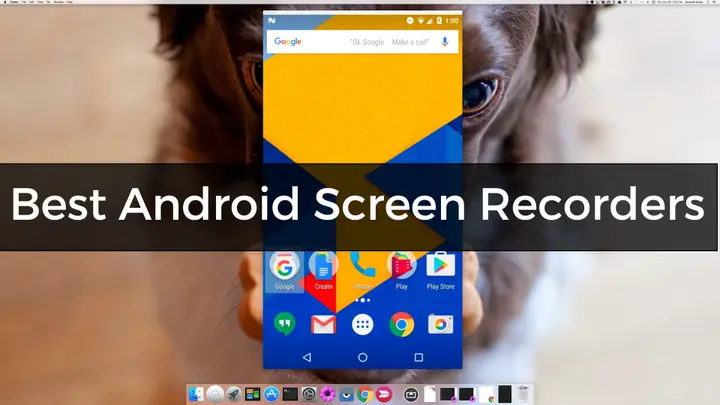
Want to record your Android screen?
Maybe you want to show a friend how you pulled off a trick, save a game clip or send an app developer a video of a bug.
In short: start with the recorder already on your phone. If you need a facecam, editing or live streaming, I'd pick AZ Screen Recorder or XRecorder.
To record from a computer, use scrcpy.
When I first wrote this list in 2018, you needed an app for this. Since Android 11, Android has its own screen recorder, and for most people it's the best one.
In this guide, I'll cover the 6 best options, which one to pick, and what changed since my 2018 list. None of these need root.
Also Read: How to Record Your Phone Screen on Android (No Root Needed)
TL;DR
- Your phone's built-in recorder: the best starting point on Android 11 and newer. Nothing to install, with no ads and no watermark.
- AZ Screen Recorder or XRecorder: pick one for a facecam, editing or live streaming. Both are free with ads.
- scrcpy: the free, open-source choice for recording your phone from a Windows, Mac or Linux computer.
- Black or silent recordings: the app is probably blocking it. Try the built-in recorder first.
Best Android Screen Recorders at a Glance
| Recorder | Best for | Price |
|---|---|---|
| Your phone's built-in recorder | Quick recordings with nothing to install | Free |
| AZ Screen Recorder | Facecam, editing and live streaming | Free with ads |
| XRecorder | High frame rate game clips | Free with ads |
| ADV Screen Recorder | Text and banner overlays | Free with ads |
| Mobizen Screen Recorder | QHD recording and Auto Tap | Free with ads |
| scrcpy | Recording from your PC | Free |
The 6 Best Android Screen Recorders
1. Your Phone's Built-in Screen Recorder
If your phone runs Android 11 or newer, it already has a screen recorder.
Swipe down twice from the top of the screen and tap "Screen record". If you don't see it, tap "Edit" and drag the tile into your Quick Settings.
Before you start, you can choose to record audio and to show your touches on the screen. The audio can be your microphone, your phone's own sound, or both.
On Android 14 and newer, you can record just one app instead of the entire screen. Your notifications stay out of the video.
On Pixel phones, there's a new feature called Screen Reactions. It came with Android 17 in the June 2026 Pixel Drop.
It adds your selfie camera to the recording and cuts out the background behind you. It only works when you record the entire screen, not a single app.
Samsung Galaxy phones have their own "Screen recorder" in the Quick panel. You can pick the sound ("None", "Media" or "Media and mic"), the quality (up to 1080p), and a selfie video from the front camera.
You can even draw on the screen while you record.
Pros:
- Nothing to install, no ads, no watermark
- Records your phone's sound, your mic, or both
- Can record a single app on Android 14 and newer
Cons:
- Fewer settings than the apps below on Pixel and stock Android
- Older phones may not have it, since stock Android only got it in Android 11
Price: Free.
2. AZ Screen Recorder
AZ Screen Recorder was my favourite screen recorder back in 2018. It's still one of the best.
It records in Full HD, and on some phones up to 2K or 4K, at up to 60 FPS. On Android 10 and newer, it records your phone's internal audio, too.
Back then, you had to install a plugin to edit your videos. Now the editor is built in.
You can trim, merge, add music and subtitles, and compress your clips. It also has a facecam, and it can live stream your screen to YouTube or Facebook.
Pros:
- No watermark and no time limit
- Internal audio on Android 10 and newer
- Facecam, editor and live streaming in one app
Cons:
- Shows ads unless you pay
- 4K recording isn't available on every phone
Price: Free with ads. In-app purchases remove the ads.
Get it from Google Play.
Also Read: 8 Best Slow Motion Video Apps for Android in 2026
3. XRecorder
XRecorder is made by InShot, the company behind the popular video editor.
You get a floating ball for one-tap recording and screenshots. You can set the resolution from 240p to 1080p at up to 60 FPS.
The app says it supports up to 120 FPS for smoother game clips. It also records internal audio on Android 10 and newer, and it has a facecam, a brush for drawing on the screen, and a simple editor.
You can even live stream to YouTube or any RTMP server.
Pros:
- No watermark and no time limit
- Internal audio, facecam and drawing tools
- Live streaming to YouTube and RTMP
Cons:
- Ads and in-app purchases
- Lots of extras you may not need, like a trash bin and video filters
Price: Free with ads. In-app purchases unlock more.
Get it from Google Play.
4. ADV Screen Recorder
ADV Screen Recorder is a smaller app. It was still getting updates in November 2026.
It has two recording engines. With the Advanced engine, you can pause and resume your recording.
You can draw on the screen, show your front or back camera, add your own text and banner, and trim the video when you're done.
Pros:
- Pause and resume (with the Advanced engine)
- Front or back camera overlay
- Custom text and banner overlays
Cons:
- Ads and in-app purchases
- Fewer extras than AZ or XRecorder
Price: Free with ads. In-app purchases available.
5. Mobizen Screen Recorder
Mobizen was on my old list because it could record the screen on Android 4.4 KitKat without root. KitKat is ancient history now, but Mobizen is still around.
It records up to 1440p (QHD) at 60 FPS. It has a facecam, and a Clean mode that records without a watermark.
You can also save long recordings to an SD card.
It has Auto Tap and Auto Swiping, too. For those, it asks for Android's Accessibility permission.
Mobizen says it doesn't collect personal data through it, but only allow it if you actually need those features.
Pros:
- QHD recording at 60 FPS
- Clean mode with no watermark
- No sign-up needed
Cons:
- Ads and in-app purchases
- Auto Tap needs Accessibility access
Price: Free with ads. In-app purchases available.
6. scrcpy (Record From Your PC)
On my old list, I recommended Vysor for recording your phone from a PC. Today, I'd use scrcpy instead.
scrcpy is a free, open-source tool for Windows, macOS and Linux. It shows your phone's screen on your computer over USB or Wi-Fi, and you can control it with your mouse and keyboard.
It doesn't need root, and you don't install anything on your phone.
To record, start it with scrcpy --record=file.mp4. On Android 11 and newer, it sends your phone's sound to the computer as well.
Requirements:
- A Windows, Mac or Linux computer
- USB debugging turned on in your phone's Developer options
Pros:
- Free and open source, with no ads
- No root and no app on the phone
- Records video and, on Android 11 and newer, audio
Cons:
- You type commands instead of tapping buttons
- Needs a computer
Price: Free.
Which Screen Recorder Should You Use?
It depends on what you're recording:
- Quick clip, nothing to install: your phone's built-in recorder.
- Facecam, editing or live streaming: AZ Screen Recorder or XRecorder.
- Recording from a computer: scrcpy.
Want a still picture of the whole page instead? See How to Take a Full Page Screenshot on Android (No App Needed).
What Changed Since My 2018 List?
A lot has changed. Here's what happened to the apps I dropped:
- Google Play Games still lists gameplay recording on Google Play. But the built-in recorder now records any app, not just games, so you don't need it for this.
- One Shot Screen Recorder. I couldn't find it on Google Play any more, and my old download link pointed to an APK site. It's gone from this list.
- Vysor is still on Google Play as a way to mirror and control your phone from a PC. Its website doesn't list video recording among its features, so scrcpy took its place.
In 2018, I saw a lot of people end up with videos that didn't save, or had a green flicker when they played them back. If an app gives you trouble like that, try the built-in recorder first.
Why Is My Screen Recording Black or Silent?
Some apps block recording on purpose.
Banking apps and password managers can mark their screens as secure. When they do, those screens come out blank or black in your recording.
Sound works the same way. Since Android 10, apps can record other apps' sound, but every app can opt out.
Third-party recorders can also only capture media and game sound.
So if a recording comes out silent, that app is probably blocking it. Switch the audio to your microphone instead.
One more thing. On Android 15 QPR1 and newer, a screen recording stops when you lock your phone.
Keep the screen on until you're done.
Also Read: 8 Best Meme Generator Apps for Android in 2026
Final Thoughts
Start with the recorder that's already on your phone.
If you need a facecam, editing or live streaming, get AZ Screen Recorder or XRecorder. If you record from a computer, scrcpy is free and has no ads.
The main caveat is that some apps and screens block recording, and third-party recorders can only capture media and game sound. If a recording comes out black or silent, the built-in recorder is the first thing to try.
Screen Reactions is new and came with Android 17, so check your own phone before you rely on it. If I missed a recorder you love, I'd like to hear about it.
FAQs
What is the best free screen recorder for Android?
On Android 11 and newer, the built-in screen recorder is the best free option. It needs nothing to install and has no ads or watermark.
Does Android have a built-in screen recorder?
Yes, on Android 11 and newer. Swipe down twice from the top of the screen and tap "Screen record".
Why is my screen recording black or silent?
Banking apps and password managers can block recording, so those screens show up black. Apps can also opt out of having their sound recorded, so switch the audio to your microphone instead.
Can I record my Android screen from a PC?
Yes, with scrcpy, a free, open-source tool for Windows, macOS and Linux. It needs no root, but USB debugging must be turned on in your phone's Developer options.
Do I need root to record my Android screen?
No. None of the apps in this list need root.
Still stuck? Tell me through the contact page.

Topics
Comments (6)
Comments are closed. Have a question about this article? Ask through the contact page.

Thank you
Your welcome :)
Good post
Thank you and I appreciate that you love the post :lol:
superb trick
Thanks