 TechVerge
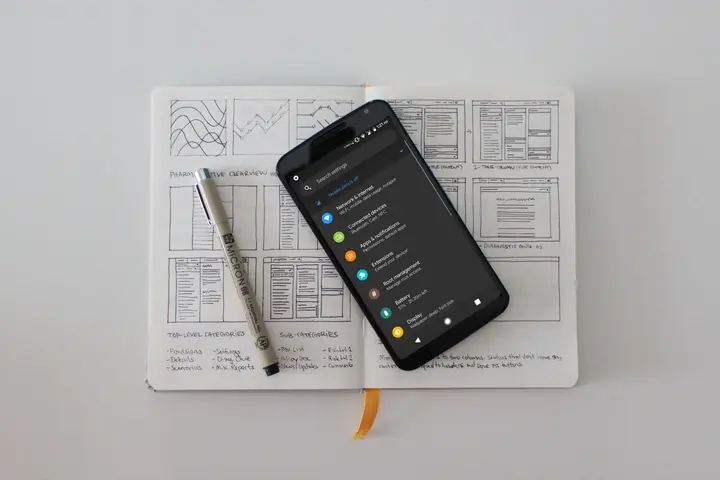
You are here because your phone is not getting the Android P update, or it is pretty late.
I think you will nod your head after reading my first sentence.
But wait!
How can you get Android Pie features on your phone?
By waving a magic wand?
Well, that's not an answer!
By waving a magic wand, you won't get the Android P beta features, and you won't get Android Pie either.
Let me tell you something.
I am going to discuss some of the best, top-notch features that you can get on your phone, and it will be easy for you to get them.
I will split this list into parts and explain how you can get those features for free.
We are not going to spend a single penny on any app.
This article is free, and trust me, you will love reading it.
First, let's look at the features of Android P. What is new?
Get Android P Features
Did you watch the Google event (Google I/O 2018)? Google introduced unique features there by integrating AI in Google Lens, Google Maps, Google Duplex and Google Photos.
Google is using machine learning and deep learning in every app.

Now:
Google is never going to stop. It will integrate machine learning into every piece of software and every app possible.
They are reimagining the way an operating system works by integrating AI and machine learning in every software possible.
Sometimes, it's a boon as well as a bane.
Why AI is a boon and a bane would be a big discussion, and that's not why we are here, right?
We are here to get those shiny Android P features on our phones.
Android Updates
Look at the iPhone 5s. It is getting an iOS 12 update.
Sometimes, Google makes me sad, because a 5-year-old phone is getting an update.
What about the 5-year-old Nexus 5?
I know we can still install a custom ROM on this phone, or you can dual boot multiple ROMs.
Google knew this, and that is why Google introduced Project Treble.
If new phones come with Project Treble, then I think in 2 or 3 years every Android phone can be updated to the latest Android version.
What Is Project Treble?
Project Treble is Google's answer to Apple.

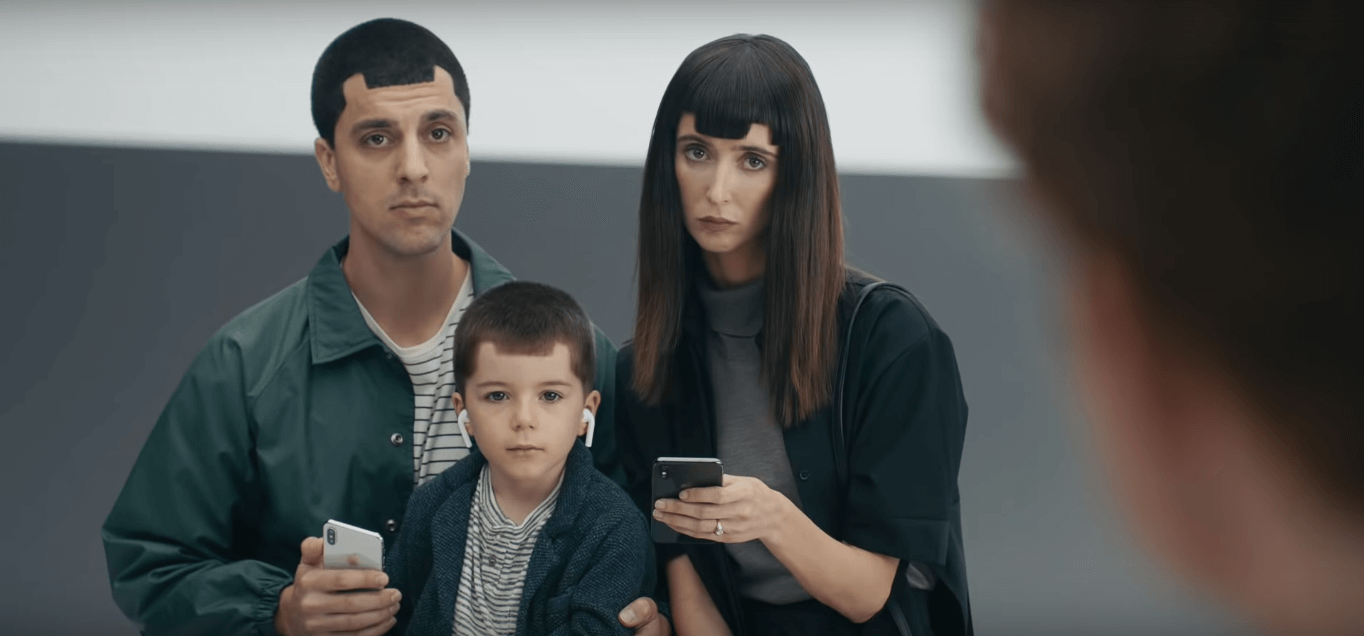
Every year, Apple mocks Android about getting new updates.
Then, every month Samsung mocks Apple.
Now:
The best answer Google can give to Apple is to launch Project Treble.

If your phone supports Project Treble, you can update your phone with a generic image.
You can flash the generic image on almost every phone.
You need to make sure your phone supports Project Treble.
Let me give you a simple example.
If you want to install Windows on your laptop, what will you do?
You get a Windows disk or a bootable pen drive, and you can install Windows on any computer or laptop.
Google's Project Treble is something similar. You get a generic image that can easily be installed on any phone that supports Project Treble.
If you want to know more about Project Treble, you can read about it here.
If you want to know more about the supported device list, take a look at this list.
How to Get Android Pie Features on Any Android Device
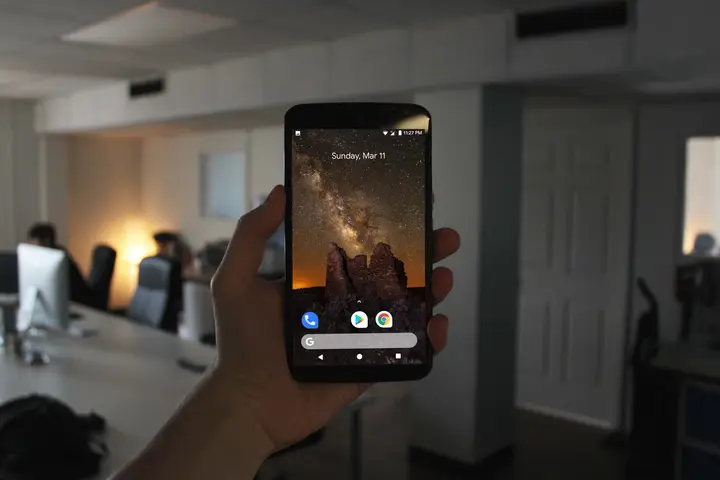
1. Pixel Launcher (No Root)
If you want to make your phone look like Android P, the first thing you need to do is install a launcher.
Now:
We will start by changing the way your app drawer looks. For that, we will be sideloading some apps.
We will be sideloading the Pixel Launcher.
You might be wondering:
Why are we not downloading the Pixel Launcher from the Play Store?
Well, here is your answer.
You won't get the Android P launcher if you download it from the Play Store.
You won't get the features of Android P.
We will install the Pixel Launcher from XDA. For that, make sure you have enabled unknown sources in settings.
Let's begin with how you can install the Pixel Launcher on your phone.
- Download Google Pixel Launcher for Android P from here: Download
- Install the app, click on settings and enable unknown sources.

- Hit the back button and try installing the app again on your phone.

- Open the app, and you will see the new UI of the Pixel Launcher on your phone.

- Now, tap on the home button twice and select the Pixel Launcher as your default launcher.

That's it! Now you have the launcher, and you don't need to do anything else. Let's move to the next step.
2. Screenshot Editor (No Root)
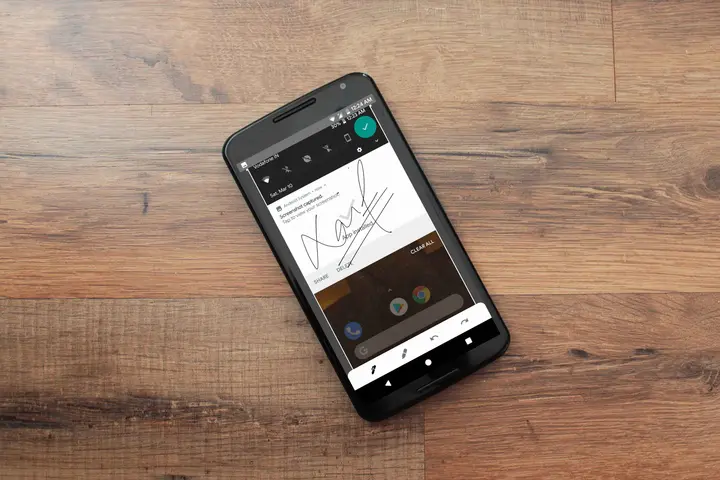
Android P comes with a new screenshot editor that lets you edit photos after taking a screenshot.
Many smartphone companies, such as Samsung, Xiaomi and others, already let us edit screenshots.
Phones such as Xiaomi also let you take full page screenshots.
In Android P, when you take a screenshot, you will find a new button called Edit.

The Markup screenshot editor helps you edit those screenshots.
You can sideload the Markup screenshot editor app, and it is easy to install on your phone.
- Download the Markup editor on your phone from here: Download
- Install the app, click on settings and enable unknown sources.

- Take a screenshot and click on the share button. Share it with the Markup editor, and you will be able to edit the screenshot.
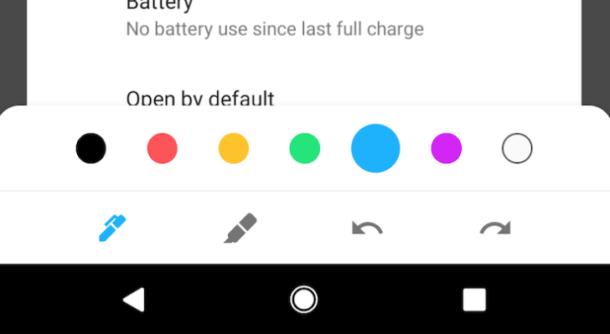
If you want the full guide, read our other article, where we discuss how to get the Markup screenshot editor feature on your phone.
Here’s the deal:
You won't be able to find the Edit option, because this feature is not available for everyone.
If you want to enable this feature, you need a custom ROM, and you need to ask your developer to add this feature to your phone.
3. Get the Volume Menu Like Android P (No Root)
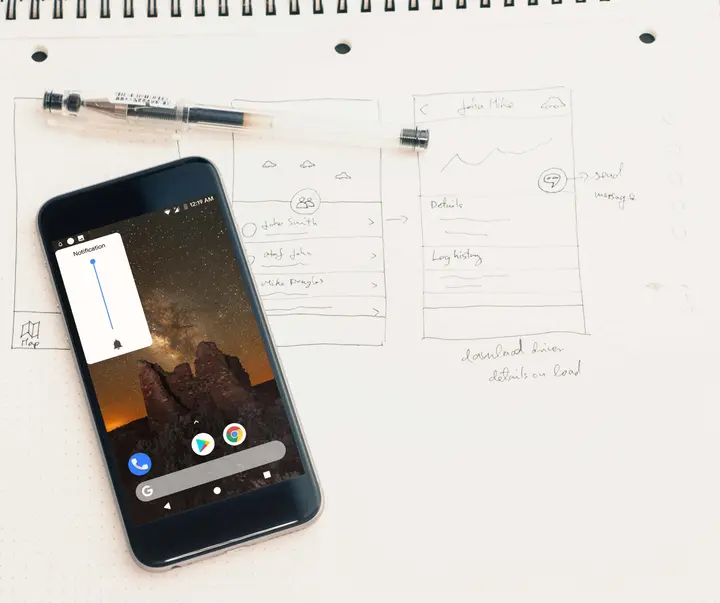
I love the volume menu of Android P, because they completely changed the way it looks.
They changed the volume slider from horizontal to vertical, so it is easy for anyone to reach and control the volume.
The Android P Volume Slider is an app that gets you this volume control feature and skin on your phone.
Getting the volume menu like Android P is easy. You need to install an app from XDA Labs.
- Download the Android P Volume Slider on your phone from here: Download
- Install the app, click on settings and enable unknown sources.
- Now, configure the app. You can read this full guide to learn more about getting the volume menu like Android P.

The new volume slider is a fantastic feature, and it looks different on every phone. You can enjoy this feature on your phone.
But wait!
I want to tell you a secret.
If you download this app from XDA Labs, you don't need to pay anything. On XDA Labs, this app is completely free.
Who doesn't like free apps?
Let's get some wallpapers now!
4. Android P Wallpapers (No Root)
A new Android version means new wallpapers.
Android P lets users enjoy new wallpapers.
If you want to change the look and feel of your Android, you can start by changing the wallpaper of your phone.
Android P has new, colourful wallpapers.
If you love the bright and new Material Design 2.0, you will surely enjoy the latest Android P wallpapers.
You can download the wallpapers from here.

5. Android P Ringtones (Root + No Root)
There are two ways of installing Android P ringtones.
The first is to flash the ringtones on your phone with the help of TWRP.
You might be wondering:
What if I don't have TWRP recovery installed on my phone?
Let me show you the other way of installing them.
The other way is to extract the zip file and set the files as ringtones.
Today, I will share both methods with you, so you can install Android P ringtones on your phone.
If you don't like deleting your old ringtones and adding new ones, you can surely install the files given below.
You can download the ringtones from here.
If you want to flash the ringtones, follow the instructions below to install them on your phone.
- Download the Google Pixel Experience zip from here: Download
- Boot your phone into TWRP recovery and click on Install.

- Navigate to the zip in your internal storage.
- Click on the zip file and install it on your phone.

- The file will automatically install apps such as the dialer, boot animation and ringtones on your phone.
This zip file installs all the apps you need on your phone, without you worrying about anything.
You need basic knowledge of how to boot your phone into recovery mode and flash zip files. Then you can install the apps you need.
If you get stuck, tell me through the contact page.
You might be wondering:
How did I take the screenshot of TWRP recovery?
You can read my article on how to take a screenshot in TWRP recovery.
6. Android P Boot Animation (Root)
There is nothing new in the Android P boot animation.
Android P has the same boot animation that was available in Android Oreo.
If you want to install the Android Oreo boot animation, you can go ahead and download it directly.
If your phone is rooted, you can move the file to your media folder, and that will install the boot animation on your phone.
Changing or playing with the system folder might be dangerous, so I suggest you flash the file using TWRP recovery.
If you have not installed TWRP recovery on your phone, you can move the file to the system folder.
Let's dive into it.
If there is a TWRP recovery for your phone, you can follow the method below.
- Download the Android Oreo boot animation from here: Download

- Boot your phone into recovery mode.
- Click on the Install button.
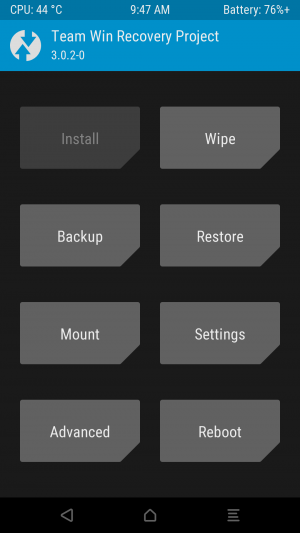
- Navigate to the file in your file manager.

- Click on it and move the slider to install the boot animation.

- That's it! You have successfully installed the boot animation.

If you know how to install a custom ROM, it will be easy for you to install the boot animation on your phone.
7. Android P-Like Notification Panel and Settings Page (Root)
Android P came with the new Material Design 2.0.
Google is changing the way Android looks, and they are building something more colourful and simple.
A lot of websites and apps are adopting the new material design.
It makes a lot of sense, because there was no significant change in the UI of Android after Android Lollipop.
There are two apps that help you turn the notification panel and settings page into Android P.
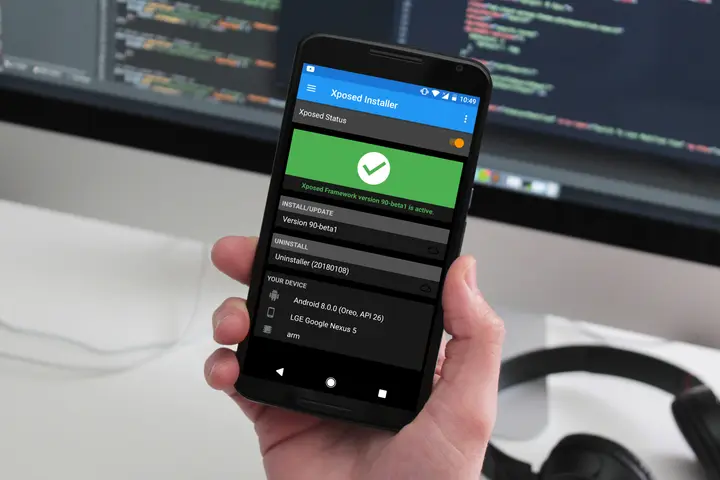
You will need Substratum.
If you are using Android Oreo, you can take the help of Andromeda, which helps you theme your phone without rooting.
If you are using Android Lollipop, Marshmallow or Nougat, you need to root your phone before installing Substratum.
If you want to install Substratum on your phone, follow the instructions below.
- Install the Substratum app from the Play Store.

- Install the app and open it.
- The app will ask you for root permission. Grant it.
- Now, it's time to download a perfect theme that makes your phone look like Android P.
- Download Android Pi Light from the Play Store, or you can also download the dark theme.

- Now, you will automatically get a notification from Substratum that you have installed a new theme.
- Open Substratum on your phone and open the Android Pi theme.

- Now, you will see a button to enable all the overlays on your phone. Enable the overlays.

- It's the moment of truth. Now, click on the design stack at the bottom right of the app.
- Click on build & Enable, and it will automatically install the overlays on your phone.

- Now, your phone will restart automatically.
The app will restart your phone automatically. The first boot will take around five minutes. If your phone is not booting, you can follow this instruction.
Now, you have successfully installed the Android P settings and notification panel. You can enjoy the Android P feature in just a few clicks.

If you are installing the dark theme, the steps are the same. Select the dark theme and click on build and enable, and all the overlays will be applied on your phone.
Installing the overlays this way is a little bit difficult, and there is a chance you will get a boot loop. You can only use this method if your Android phone is on 5.0 or above.
8. Always On Display (No Root)
We have seen Always On Display on the Google Pixel 2 XL and OnePlus 6. Later on, we saw that in the Android P developer preview 3, they removed the option from the settings.
Always On Display makes your phone look professional, and it also helps you check notifications more easily.
There is an app that helps users get Always On Display. They can download a third-party app to enjoy this new feature.
The app is called Always On AMOLED – BETA.
- Download the Always On AMOLED Beta app from the Play Store.

- Install the app on your phone.
- Open the app and grant all the permissions.

- You will see the home screen of the app. Click on Customize Watchface.

- Now, click on Battery indicator and select the default style.
- That's it! Lock your phone, and you will see the app working fine.

This app is in the beta stage, so there are chances you will see some bugs in it. That is fine, because you are getting Android P features on your phone.
If you face any more issues or bugs, you can report them to the developer, which helps him develop the app for you.
There are a lot of settings in the app that you can try on your phone. You can change the complete style of your ambient screen with it.
9. Android P Notch Emulator (No Root)
If you want to get the Android P notch, you can also do so with the help of a small app.
We have seen that Android P supports the notch. If your phone has a notch, there will be native support for it.
If your phone doesn't have a notch, you can get one from Developer options. But what if you are using Android Oreo?
Getting a notch on your phone is easy. Download an app from the Play Store, and once you have installed it, you can make the changes on your screen.

This app is easy and straightforward to use. If you want the notch, you can get it by simply drawing the notch emulator over other apps.
The app is not perfect and has some bugs, which is fine because you are getting an iPhone X notch.
This app may cause issues with the overlay on your phone. That is fine, because you are getting a notch. And trust me, it looks hideous.
10. Smart Replies (No Root)
Smart Replies is one of my favourite features. It automatically analyses my conversation and suggests a text to reply with.
If you want to reply to the other person, you don't need to type anything. You just click on the suggested message, and it sends the message.
Every phone is becoming smart. Google's Android is adding machine learning and AI everywhere.
The Smart Replies app is not available on the Google Play Store. If you want to download it, you can quickly do so with the help of ApkMirror.
If you want to download the app, follow the instructions below.
- Download the Smart Replies app from here: Download
- Install the app and make sure you have enabled unknown sources.

- Click on Settings, allow app installation from unknown sources, and try installing the app again on your phone.
- Open the app. The first thing you need to do is sign in with Google.

- Then you need to allow notification access.

- Now, once you configure the settings, whenever someone sends you a message, you will get a text suggestion.

This app is still in the beta stage.
Google Smart Reply is still under development, and you might find some bugs in this app.
This app may or may not work, because it is in the beta stage. If you want, you can share the logs with Google while using the app.
If you face any issues while installing the app, you can install the old version of the app, which might work on all phones.
11. Gesture Control (No Root)
One of the best features, and the first time Google is launching it, is gesture control. If you want to navigate through recent apps, you swipe up, and you can check the current apps.
The gesture control feature is available on the iPhone X.
Now, big companies such as OPPO, Vivo and OnePlus are launching this feature.
I love this feature a lot. If you are a fan of it, you can also enjoy it on your Android with the help of the Navigation Gestures app.
XDA Developers develop Navigation Gestures, and it is a handy app. If you install it, make sure you handle it correctly.
If you uninstall this app without getting back to the previous navigation bar, you will end up bricking your phone, and you won't be able to access it properly.
There are many other features in this app where you can control everything. If you want more features, you can buy the premium version of the app.
This app is 3.6 MB, and it has a lot of features.
- Download Navigation Gestures from here: Play Store

- Open the app and grant all the permissions.
- If you have rooted your phone, you can try the rooted method to install the app.

- You can customise the pill and change its appearance.

- You can add your own app and customise it.

- If you uninstall this app in the future, make sure you revert the settings to normal first, and then try uninstalling the app.

That's it! You have successfully installed the new gesture control navigation on your phone.
Final Verdict:
I hope you love these apps that help you get Android P features on your phone.
This article was about how you can get Android P features on any Android device.
These were eleven things you can do with your phone to get the Android P features.
Which one of these tricks do you love the most?
I hope you enjoy these tricks. If there is something new in the settings, I will surely add it to this page.
If you get stuck, tell me through the contact page.