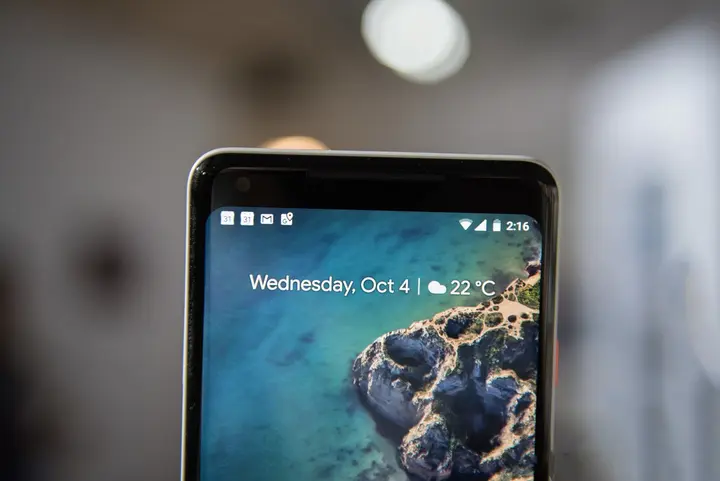
Google recently launched the all-new Google Pixel 2, and it came with amazing features. These features are unique and only available on the Pixel 2.
What if you want to enjoy them on your phone? Today, I will tell you the best tips to make your phone look like the Google Pixel 2.
If you have a Google Pixel device, you can enjoy these features on it too. I will tell you about some apps that will help you make your phone look like the Pixel 2.
The Pixel 2 came with features such as rounded corners, an always-on ambient display and Now Playing, which helps users identify music in just one click. We also loved the all new pixel launcher.
Also Read: How to Get Rid of Google Assistant On Your Android Device
8 Best Tips to Make Your Phone Look Like Google Pixel 2
1. Search Bar in the Dock
You can install Nova Launcher, or you can install Lawnchair. Either one will help you make your phone look like the Pixel 2.
I recommend Lawnchair. It has fantastic features that change the look and feel of your phone. If you have Android Marshmallow, you can even make it look like Android Oreo, thanks to the notification dots and many other features.
Lawnchair makes your phone feel new, with surprising features. I suggest you install a new launcher because you might not get updates for your old Pixel launcher.
Read: Download Google Pixel 2 Latest Pixel Launcher With The Bottom Search Bar

2. Google Notification Widget
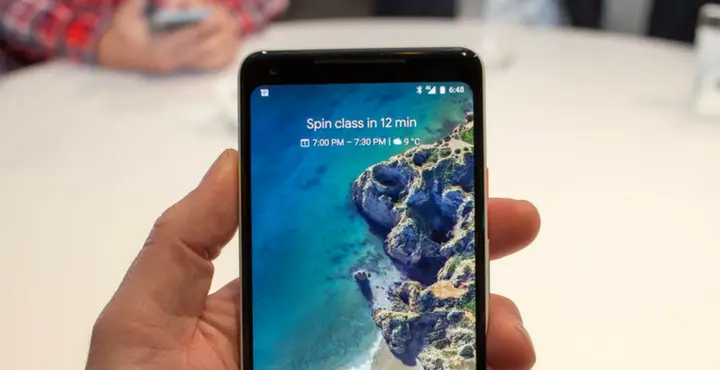
Google has also redesigned the widget. The new look is clean and impressive.
If you have installed Lawnchair, you might get this look soon. If you want, you can also try the Pixel 2 ported launcher which works the same way, and you can enjoy the weather on the Pixel 2 launcher.
If you are using some other launcher, I suggest you use Another Widget. It will help you make your phone look like the Pixel 2.
Also Read: How to Disable Google AMP Links in Google Search On Android

Via: AndroidCentral
3. Now Playing
Now Playing works in the background of your Google Pixel phone. If a song is playing nearby, you will get to know which song it is, and you can also listen to that song on Spotify.
This is a Pixel 2 exclusive feature, but with the help of Shazam, you can enjoy it on your smartphone. It might use 15% of the battery, and you need to configure the app correctly to make it run in the background.
The name of this feature is Auto-Shazam. It listens to the music in the background, and you don't need to do anything. If you want it on your phone, download Shazam. You can read the Auto-Shazam Guide.

4. Live Photos
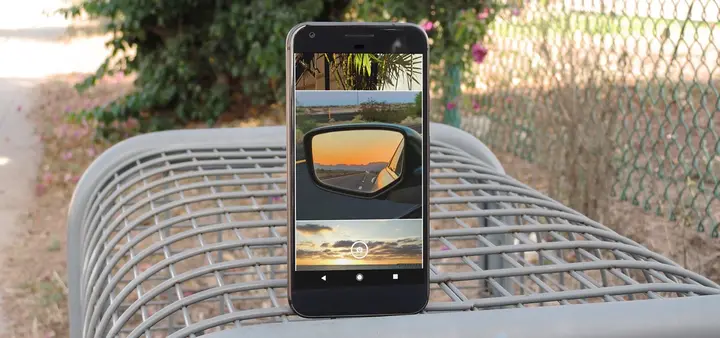
HTC did it first with Zoe, Apple made it popular with Live Photos, and now Google is in on the trend too. This feature might never come to the Pixel phones.
If you are an Android user, you can enjoy it on your phone and snap live photos. This time, instead of the Google Camera, you will download a third-party app that lets you take live photos. Trust me, it is fantastic.
Also Read: How to Port Google Pixel Round Icons on Android Nougat
The best part is that these apps run fine on all smartphones, no matter which Android version you use or what the specifications of your phone are. You can download Motion Stills and Camera MX from the Play Store.
Also Read: 4 Ways to Try the Pixel 2's New 'Motion Photos' on Any Android
If you want something original, you can install Google Camera 5.1, which will help you take live photos on your phone.

5. Rounded Corners
If you have seen the reviews or unboxing of the Pixel 2 XL, you might have noticed the rounded corners on its edges. This is something new, and it gives your phone a premium design.
You don't need to worry, because you can get this feature on your phone with the help of a small app. You don't need a rooted device to try this trick.
Cornerfly is the app that gives you rounded display corners on your phone. I have personally loved this app and the developer's work.

6. Portrait Mode
Portrait mode came first on the iPhone, and later Google followed the same path, but with a single camera. You can enjoy this feature on your phone too.
Google Camera 5.1 is available, but because of some issues, you cannot use this feature with it.
Also Read: Top 10 Best Android Custom Rom 2017
You can try a newer version of Google Camera and see if it works. You can enjoy the new blur mode in the Google Camera. There is no third-party app that gives you portrait mode, except Google Camera.

7. Face Retouching
Face retouching is a new feature that comes with the Google Pixel 2. If you want it on your phone, you can install Google Camera and enjoy it.
I found this feature a bit annoying because it hides all the pores on our face. But hey, different strokes for different folks, right?
It is the same as the Beauty mode available in almost every camera. If you don't love this feature, you can use the best alternative, Snapseed. Snapseed uses the same algorithm as the Google Camera, so you can enjoy face retouching on your phone too.

8. Google Live Wallpapers
Do you remember the fantastic live wallpapers on Android 2.3 and 4.0? You can download the same wallpapers on your phone.
XDA Recognized Developer / Recognized Themer Pranav Pandey has ported the Pixel wallpapers so that you can enjoy them on your phone.
Also Read: Get the Pixel 2 Amazing New Live Wallpapers on Your Android Device

Final Verdict
If you want to make your phone look like the Pixel 2, I suggest you download the Google Apps from the Play Store. They will help you enjoy the Google apps easily.
Share this article with your friends and let them know how they can turn their phone into a Google Pixel 2 and enjoy its look and feel.
If you get stuck, tell me through the contact page.

Topics
Comments (1)
Comments are closed. Have a question about this article? Ask through the contact page.

If you read any of the recent reviews you'd see that cornerfly is junk. Roundr has existed all the way back to kitkat days, doesn't have ads and "just works" to do the same thing. Support is also available on XDA for Roundr. http://forum.xda-developers.com/showthread.php?t=2234079