 TechVerge
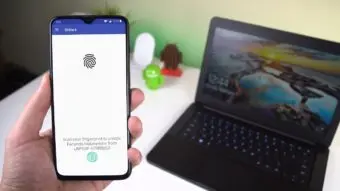
Want to unlock your Windows PC with the fingerprint sensor on your Android phone?
Windows doesn't have a built-in way to do this, but an app called Remote Fingerprint Unlock can.
The quick answer: install the app on your phone and its small module on your PC, then pair them over Wi-Fi or Bluetooth. You don't need a rooted phone, just one with a fingerprint sensor.
Back in 2019, I found this app. When I tried using this app, I faced some issues.
But after I understood how this app works, it was straightforward to set up.
The app is still on Google Play, it's still being updated, and its developer lists Windows 11 support.
In this guide, I'll cover what you need, how to install both parts, what to do if it doesn't connect, and how safe it is to use.
Also Read: How to Read Deleted WhatsApp Messages on Android Without Root

TL;DR
- What you need: an Android phone with a fingerprint sensor, a Windows PC with a password on your account, and the Remote Fingerprint Unlock app plus its Windows module.
- How they connect: your phone and PC need to be on the same Wi-Fi network, or both need Bluetooth. The app also lists Wi-Fi tethering and USB tethering.
- Setup: install the module on your PC, install the app on your phone, add your PC in the app, then check the session ID on both screens.
- No root needed: the app works with your real Windows account password, not your PIN.
- Be careful: the app gets your Windows password, and it's a small app from one developer. Use it on a home PC, not a work PC with sensitive data.
What Is Remote Fingerprint Unlock?
Remote Fingerprint Unlock is an app that unlocks your Windows PC with your phone's fingerprint sensor.
It has two parts: a small app for your Android phone and a small module for your Windows PC. You need both for this trick to work.
Connection Options at a Glance
| Connection option | What you need |
|---|---|
| Same Wi-Fi network | Your phone and PC on the same network |
| Bluetooth | Bluetooth on both devices, paired in Bluetooth settings first |
| Wi-Fi tethering | Your PC connected to your phone's hotspot |
| USB tethering | Your PC connected to your phone with a USB cable |
If you're at home, the same Wi-Fi network is the easiest place to start.
Does Remote Fingerprint Unlock Still Work on Windows 11?
Yes. The Android app was last updated in October 2026, and its Play Store page says the Windows module works on Windows Vista, 7, 8, 10 and 11.
One thing to know: the Windows module itself is version 1.3.0, from 2021. It hasn't changed since then, but the developer still lists it for Windows 11.
Requirements
- Remote Fingerprint Unlock for Android: Play Store
- Fingerprint Credential Provider module for Windows: Download (this is the link from the app's Play Store page)
- An Android phone with a fingerprint sensor
- A Windows PC with a password on your account
- Your Wi-Fi network, or Bluetooth on both devices
Once you have everything ready, you can follow the steps below.
How to Install the Windows Module
- Download the Windows module on your PC. It's a ZIP file with one installer inside. In 2019, you had to pick the 32-bit or 64-bit version; now there's just one.
- Unzip it and run the installer. You might get a warning saying "Windows protected your PC". Click "More info".

- Click "Run anyway" to install the application on your PC.

- Read the terms and conditions of the app, then click "Next". (I know you're not going to read the conditions.)

- While it installs, you'll see a question about firewall exceptions. Click "Yes". It lets the module talk to your phone through Windows Firewall (on port 4009).

- The installation is finished, and the module is now on your PC.

- Connect your PC to your Wi-Fi.
- Lock your PC by pressing the "Windows + L" keys. Keep it locked during the phone setup below, as the app asks.

Now you have to do the setup on your Android phone.
How to Pair Your Android Phone With Your PC
The screenshots below are from 2019. The app may look a little different today, but the steps are the same.
- Install Remote Fingerprint Unlock on your phone from the Play Store.

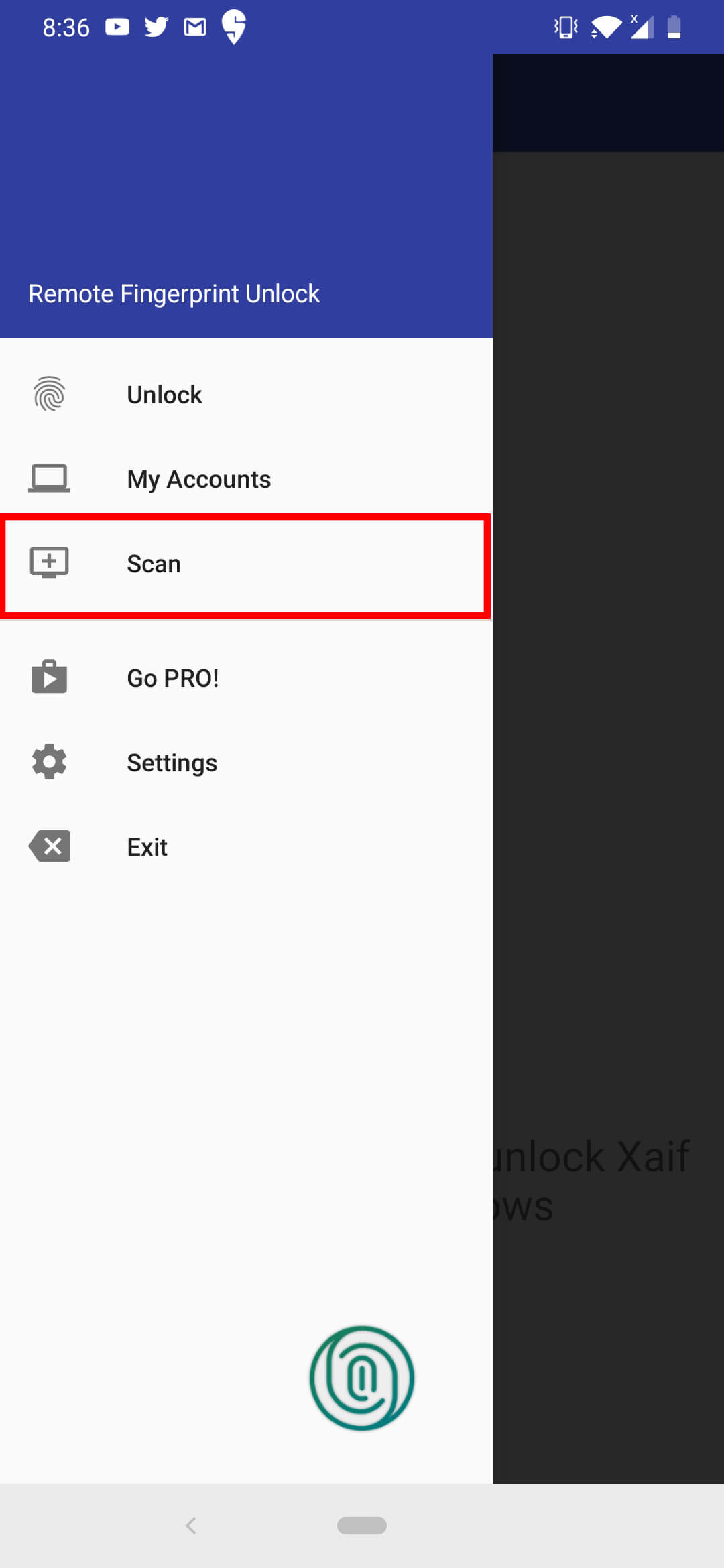
- Open the app, tap the hamburger menu button, and then tap "Scan".
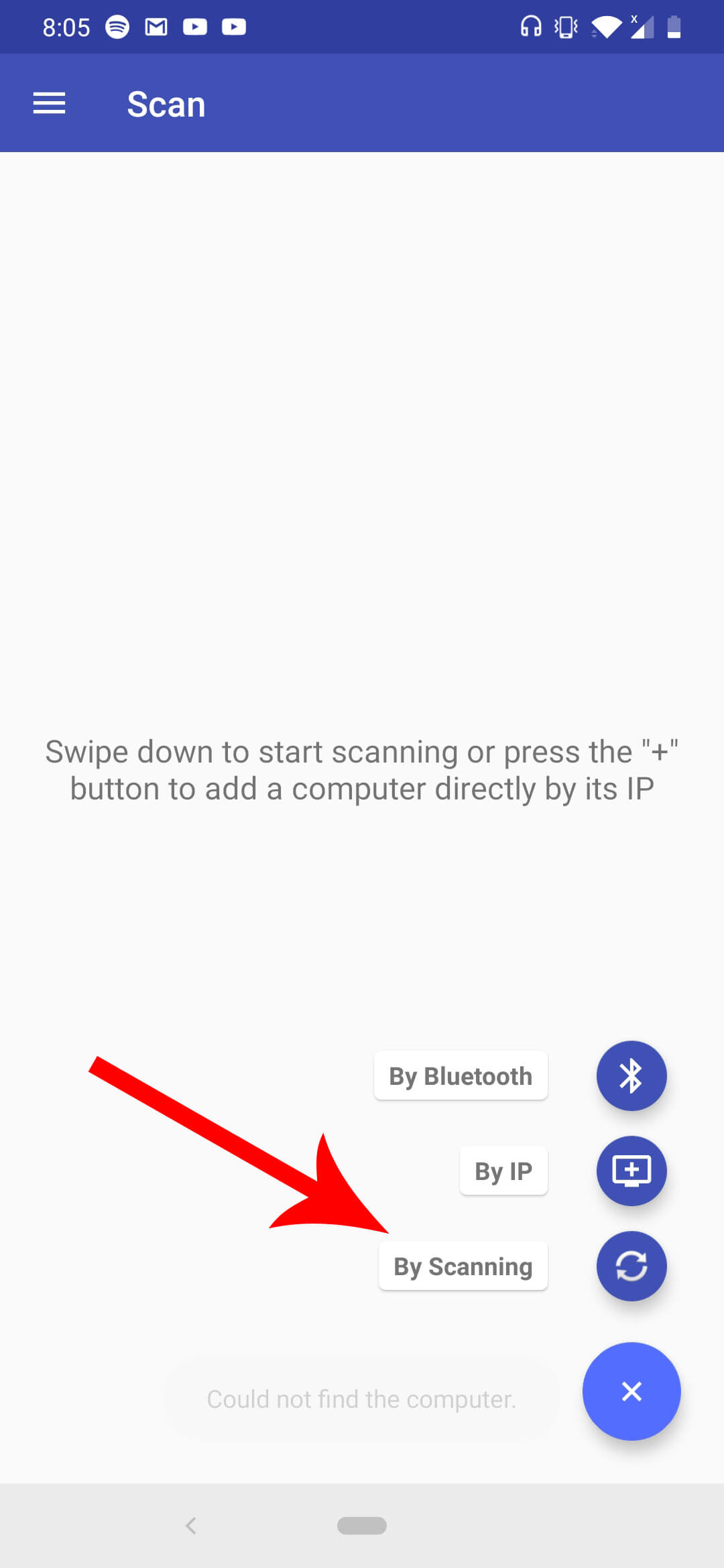
- Swipe down to scan over Wi-Fi, or tap the "+" button and then "By Scanning". You can also pick "By Bluetooth" or "By IP" here. Make sure your Windows PC is locked and password protected as well.
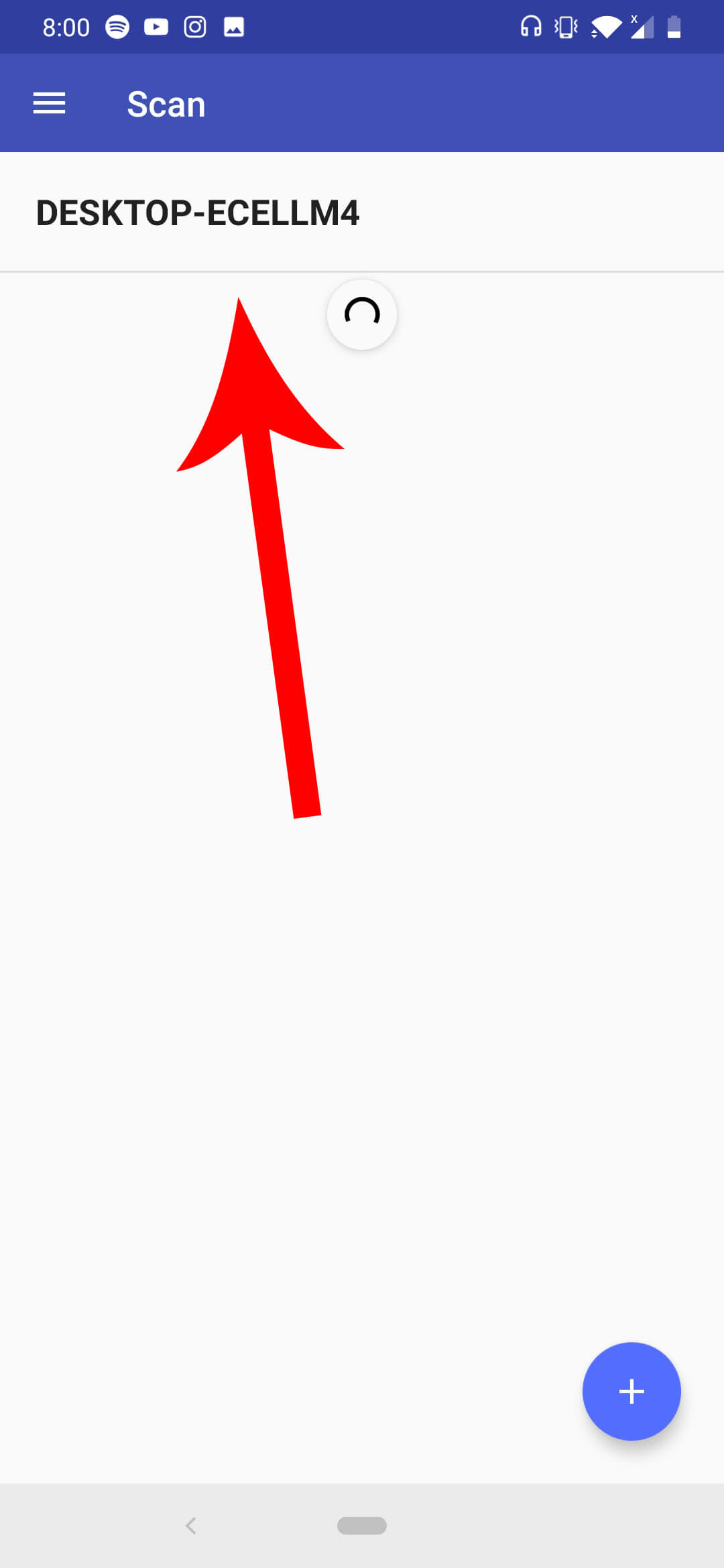
- Select your PC.
- If you want to give your PC a name, you can do it here. Then tap "Save".
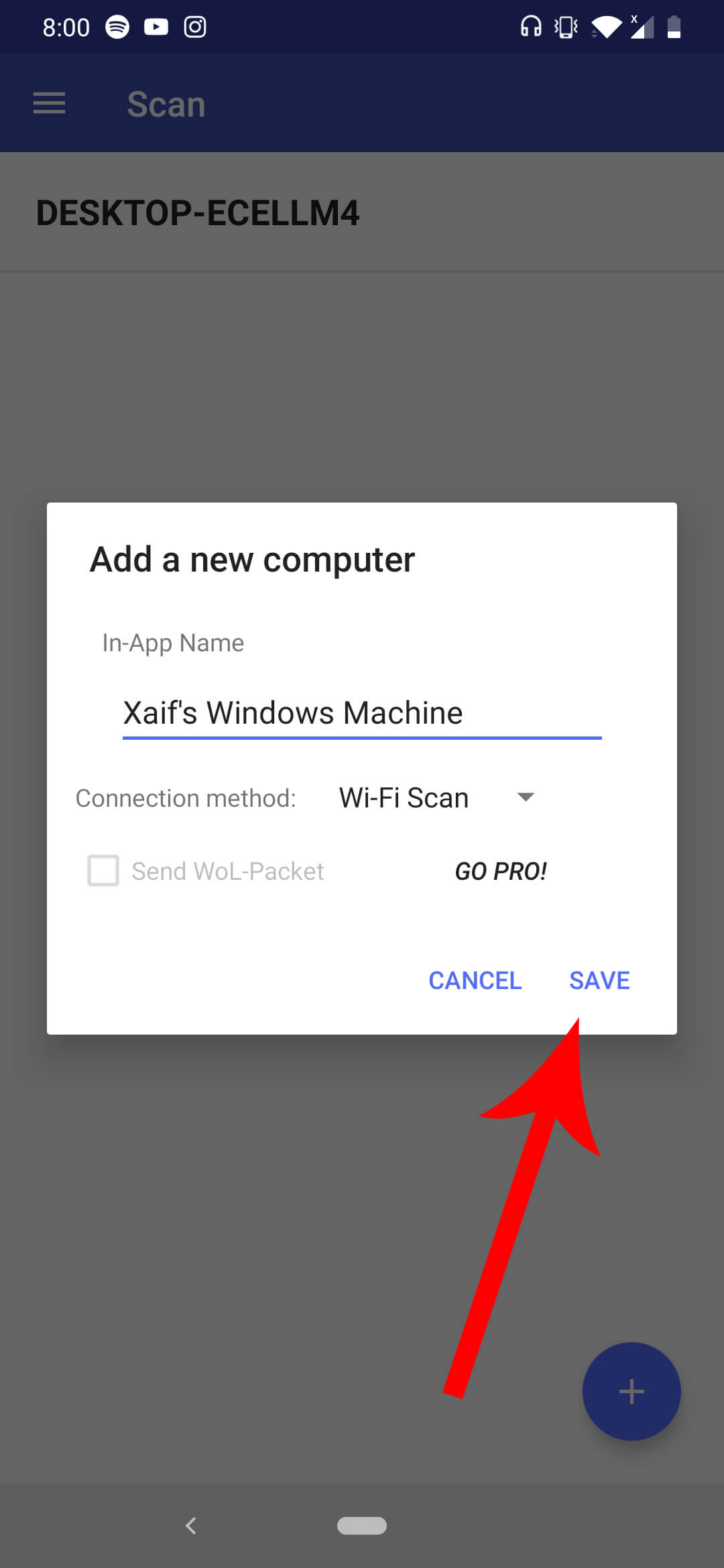
- A help dialog appears. Tap the "Accounts" button.
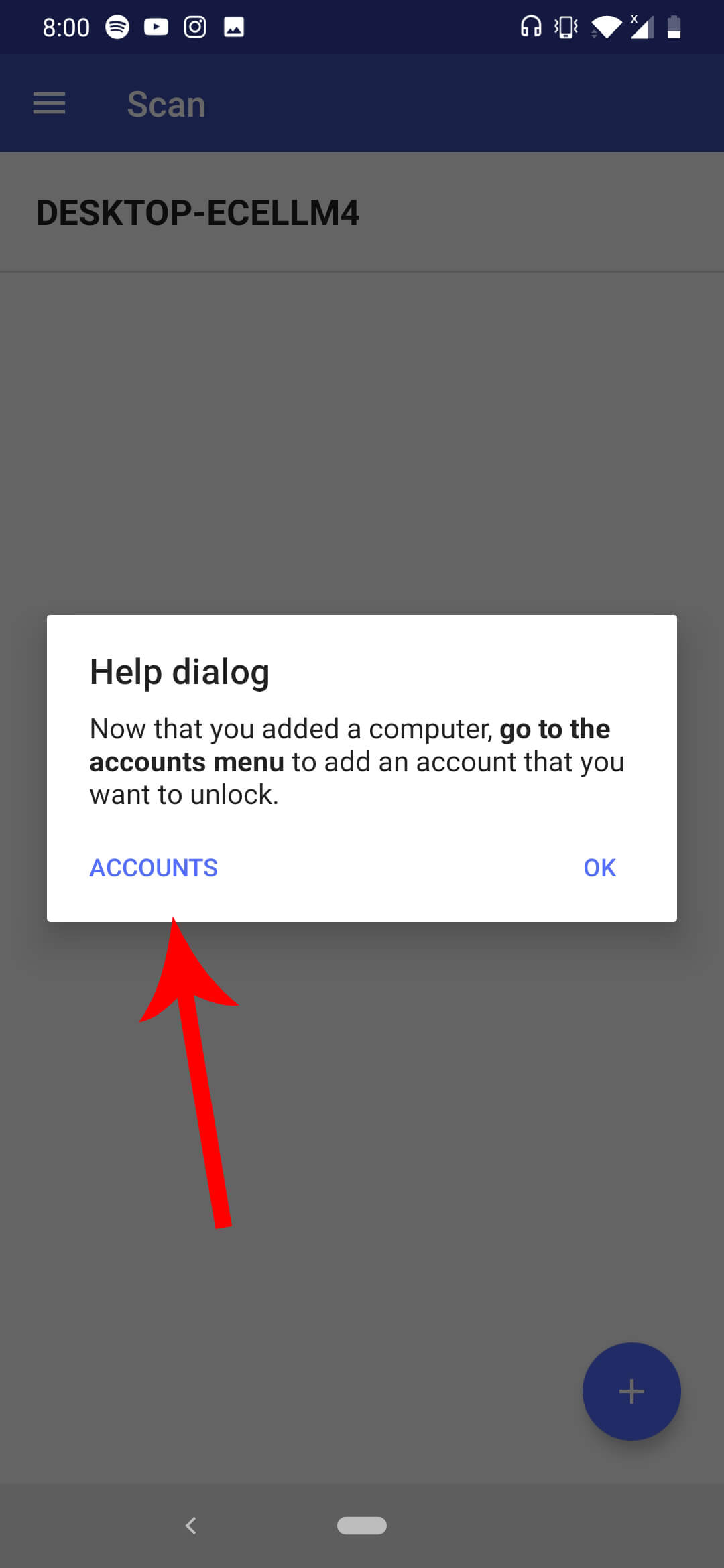
- Your Windows PC appears in the list. Tap "Add Account". In newer versions, it's in the three-dot menu next to your PC.
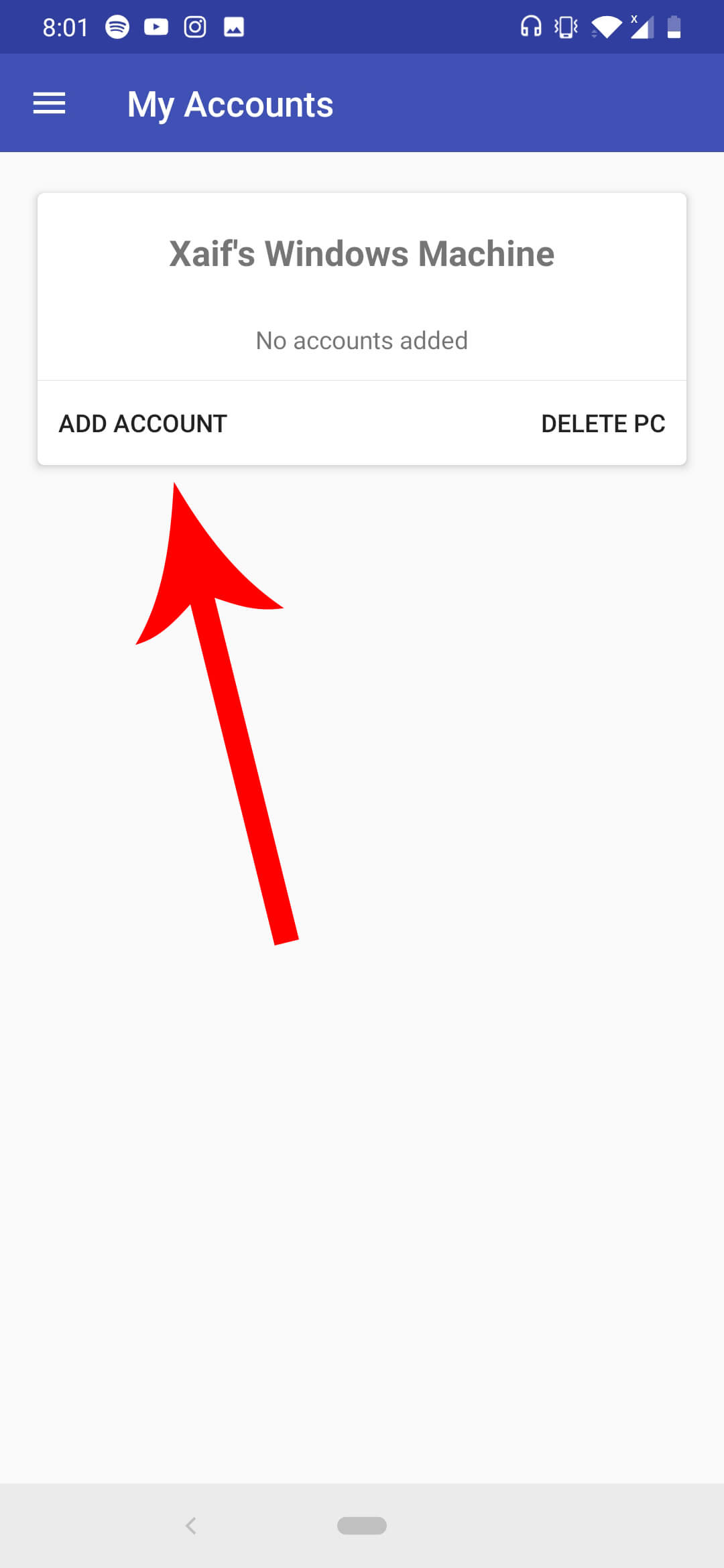
- Enter your Windows account name and your Windows password. Type the name exactly as it shows on your lock screen, because it's case sensitive. Then scan your fingerprint and tap "Add".
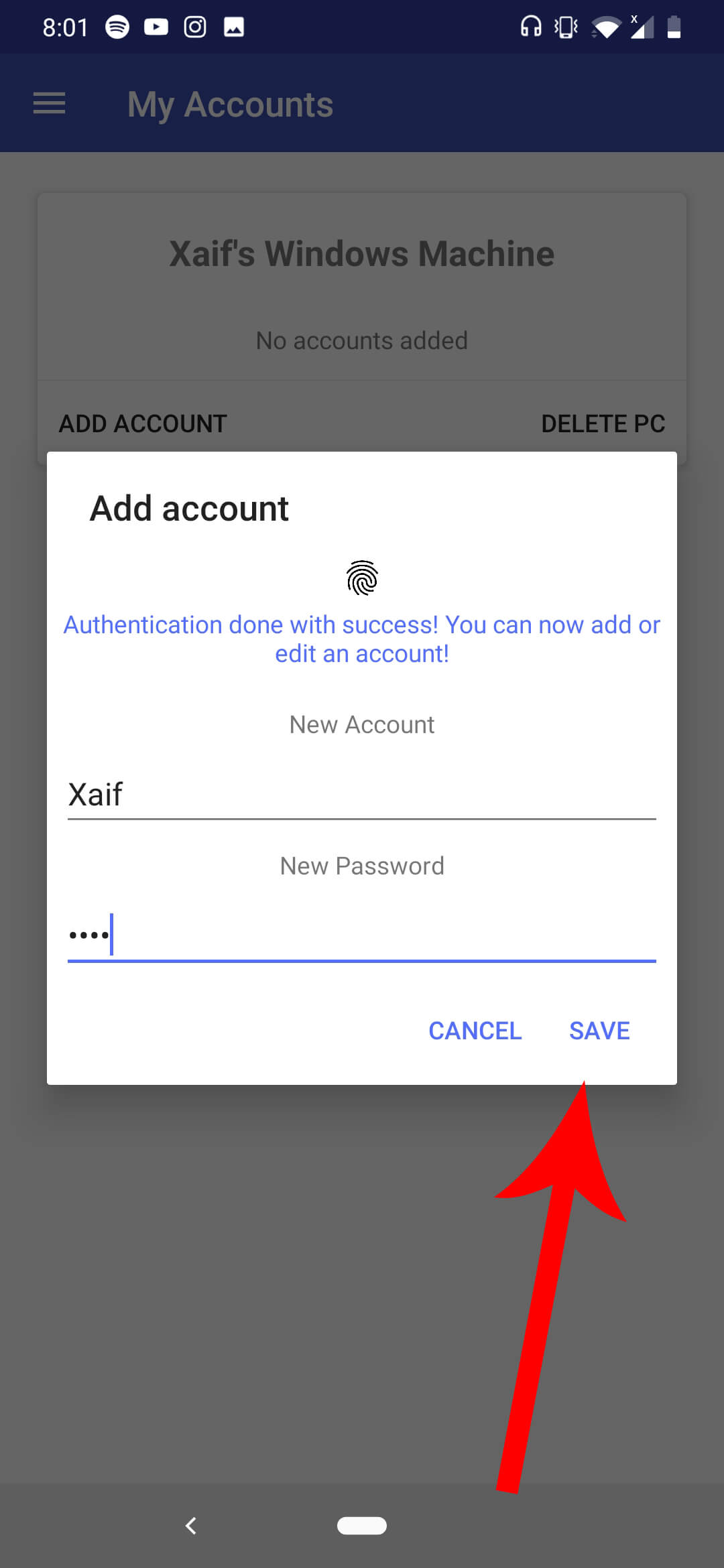
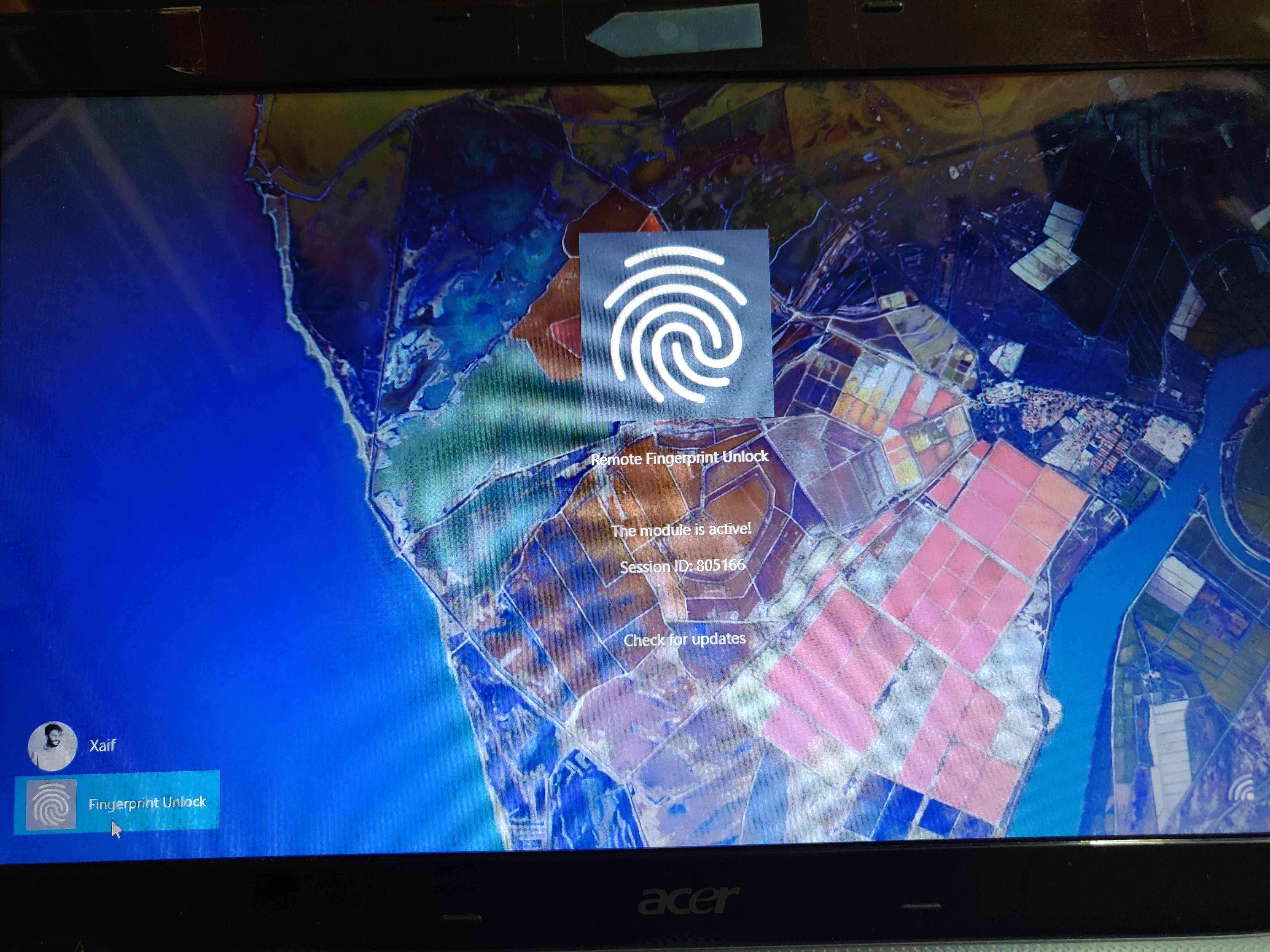
- The app shows you a session ID. Check it against the one on your Windows lock screen.
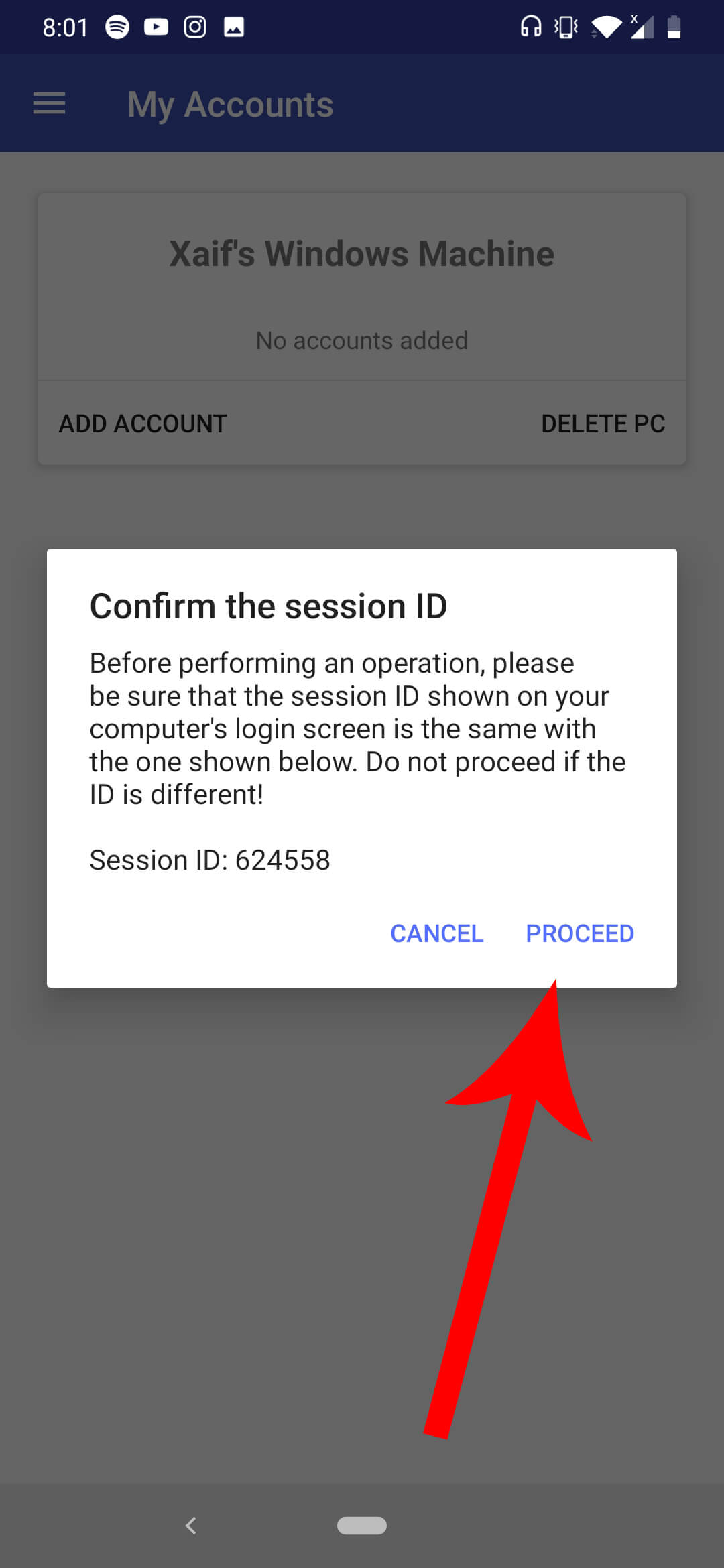
- If the session ID on Windows and Android is the same, tap "Proceed". If it's different, don't tap it.
- Go to "Unlock" and use your fingerprint sensor to unlock your PC.
You have successfully set up the app.
If you run into trouble with these steps, the video tutorial below walks through them. It's from 2019, but the steps haven't changed much.
Video Tutorial
What to Do If Remote Fingerprint Unlock Doesn't Work
These are the problems the developer's FAQ talks about:
- Use your password, not your PIN. The app doesn't support Windows PINs. It needs your real account password.
- Your PC isn't found. Make sure the PC is on the lock screen and that both devices are on the same network.
- Bluetooth doesn't connect. Pair your phone and PC in Bluetooth settings first.
- Other firewalls. If you use a firewall other than Windows Firewall, allow TCP and UDP on port 4009 for LogonUI.exe in C:\Windows\System32.
One more thing: Windows 11 has a setting called "Only allow Windows Hello sign-in" for Microsoft accounts, which turns off passwords for those accounts.
Since this app signs in with your password, it may not work while that's on.
Is It Safe to Unlock Your PC With an App?
This app asks for your Windows password, so it's worth thinking about the risk before you set it up.
The developer says the app doesn't use an in-between server, it encrypts everything it sends, and it doesn't store your password in the Android app. That's good.
But it's a small app from one developer, it shows ads, and its Play Store data safety section says it may share some data with third parties. So use it on a home PC, not a work PC with sensitive data.
Also Read: How to Remotely Turn Off Your Android by Sending an SMS
What Can Windows 11 Do on Its Own?
Windows 11 has come a long way since 2019. Here's what it can do by itself:
- Windows Hello fingerprint: If your laptop has a fingerprint reader, go to "Settings" → "Accounts" → "Sign-in options" → "Fingerprint recognition (Windows Hello)" → "Set up". No reader? Microsoft says you can buy a USB fingerprint reader and plug it in.
- Dynamic lock: Pair your phone with your PC over Bluetooth, then turn on "Dynamic lock" in "Sign-in options". When you walk away with your phone, Windows locks itself within about a minute. It only locks your PC, though. It can't unlock it.
- Passkeys on your phone: You can use your phone's fingerprint to sign in to websites and apps on your PC by scanning a QR code. But that's for websites, not for unlocking Windows itself.
So Windows 11 still has no built-in way to unlock your PC with your phone's fingerprint. That's why this app is still useful.
Also Read: How to Get the OnePlus 5T's Face Unlock on Any Android
Final Thoughts
This app was one of my favourite apps when I first wrote this article, and I'm glad it's still around.
If you want to add multiple PCs, you need the PRO version, which also removes the ads and adds Wake-on-LAN. When I wrote this, it cost 1 dollar, and I thought it was worth it.
You can use this trick only when your phone and PC share a network (your Wi-Fi, or your phone's hotspot or USB tethering) or are connected by Bluetooth. Lock your PC before you try it.
If your laptop already has a fingerprint reader, Windows Hello is the simpler choice.
FAQs
Can I unlock my Windows PC with my Android fingerprint sensor?
Yes. Install the Remote Fingerprint Unlock app on your Android phone and its Windows module on your PC, then pair them over the same Wi-Fi network or Bluetooth.
Does Remote Fingerprint Unlock work on Windows 11?
Yes. Its Play Store page says the Windows module works on Windows Vista, 7, 8, 10 and 11.
Do I need a rooted Android phone?
No, you only need a fingerprint sensor on your phone. The app needs your real Windows account password, not a PIN.
Can Windows 11 unlock with my phone's fingerprint by itself?
No, Windows 11 has no built-in way to unlock your PC with your phone's fingerprint. Its Dynamic lock feature can lock your PC when you walk away with your paired phone, but it can't unlock it.
Still stuck? Tell me through the contact page.