 TechVerge
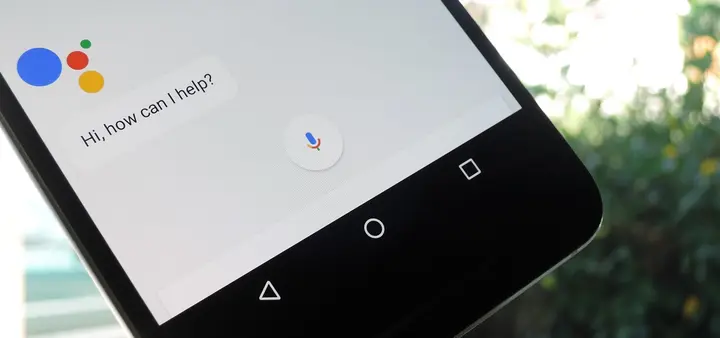
Does an assistant pop up every time you hold the power button?
Or are you missing the old Google Assistant and want it back?
When I first wrote this in 2017, Google Assistant was the new thing, and many people wanted the old Google Now back.
I showed you two tricks then: a language change to "English (U.S. Virgin Islands)", and a build.prop tweak for rooted phones.
The story has flipped since then. Google Assistant is being retired, and Gemini has taken its place on Android phones.
The quick answer: you can't switch back to Google Assistant, but you can turn the assistant off. Change the power button, turn off "Hey Google", and set your default digital assistant to "None".
Here's what happened, why there's no way back, and the steps to turn the assistant off on your phone.
Also Read: Gemini vs Siri: Which Phone Assistant Is Better?
TL;DR
- Google Assistant is being removed: Google started on September 4, 2026, and Gemini is now the assistant on Android.
- You can't switch back: once the change reaches your phone, you won't be able to use or switch back to Google Assistant on it.
- Turn it off in Settings: no root needed. Change the power button, turn off "Hey Google", turn off the lock screen option, and set the default digital assistant to "None".
- Uninstalling Gemini isn't enough: deleting the app doesn't change your default assistant.
What Happened to Google Assistant?
In August 2026, Google emailed Assistant users with a simple message: "Google Assistant is going away on mobile devices."
Here's what that means, according to 9to5Google's report on the email:
- Google started removing Google Assistant on September 4, 2026. Google said it may take a few weeks to reach everyone.
- It's being removed from Android phones and tablets, Wear OS watches, headphones, and Android Auto when it runs from your phone.
- Gemini is now the assistant on Android.
A few things aren't part of this change. Cars with Google built-in keep Google Assistant for now.
Google TV, Google Home speakers and smart displays aren't affected yet either, though Google says Gemini is coming to them too.
Also Read: How to Install Google Assistant (Gemini) on iPhone
Can You Switch Back to Google Assistant?
No. Once the change reaches your phone, Google says you "will no longer be able to use or switch back to Google Assistant" on your phone, tablet or paired devices.
In August, the Gemini app still had an option to switch back to Google Assistant. That option goes away once your phone has been switched.
So the real question now is how to turn the assistant off.
Gemini and Google Assistant Settings at a Glance
| Setting | Where to find it | What it does | Root needed? |
|---|---|---|---|
| Power button | Settings → System → Gestures → Press & hold power button | Stops a long press from opening Gemini | No |
| "Hey Google" | Gemini app → Settings → Talk to Gemini hands-free | Turns off "Hey Google" | No |
| Lock screen | Gemini app → Settings → Gemini on lock screen | Stops Gemini opening without unlocking | No |
| Default digital assistant | Settings → Apps → Default apps → Digital assistant app | Removes Gemini as the default assistant | No |
| Gemini app | Your apps list, like any other app | Removes the app, but not the default setting | No |
How to Turn Off Gemini on Android
Here's the good news: you don't need root or any tricks for this.
Google gives you proper settings for all of it.
The steps below come from Google's Gemini help page. The menus can look a little different depending on your phone's brand.
1. Stop the Power Button From Opening Gemini
- Open "Settings" → "System" → "Gestures" → "Press & hold power button".
- Pick an option other than Gemini or the digital assistant, like the power menu.
If you can't find it, search for "power button" in Settings.
2. Turn Off "Hey Google"
- Open the Gemini app.
- Tap the menu icon, then your profile picture or initial, then "Settings".
- Tap "Talk to Gemini hands-free".
- Turn off "Hey Google".
3. Stop Gemini on the Lock Screen
- In the Gemini app, go to the menu → your profile picture → "Settings".
- Tap "Gemini on lock screen".
- Turn off "Use Gemini without unlocking".
4. Remove Gemini as Your Default Assistant
This is the big one.
- Open "Settings" → "Apps" → "Default apps" → "Digital assistant app".
- Tap "Default digital assistant app".
- Choose "None", or another assistant app you'd rather use.
You might notice the setting says "Google" and not "Gemini". Google says "Google" is what you'll see here whether you use Google Assistant or Gemini.
Keep one catch in mind: Google's Circle to Search help page says Google should be your default digital assistant app. So if you choose "None", Circle to Search may stop working too.
Also Read: How to Use Google Lens in Google Photos on Any Phone
5. Uninstall the Gemini App
Google says you can delete the Gemini app the same way you delete any other Android app.
But deleting the app doesn't remove Gemini as your default digital assistant. So do step 4 as well.
Which Settings Should You Change?
If you only want the assistant to stay quiet, change the power button and turn off "Hey Google". If you want a different default assistant, or none at all, do step 4 as well.
Keep the Circle to Search catch from step 4 in mind before you choose "None".
What About the Old Workarounds?
In 2017, I showed you how to switch your phone's language to "English (U.S. Virgin Islands)", where Google Assistant wasn't available yet.
For rooted phones, I showed you how to change ro.opa.eligible_device=true to false in the build.prop file.
Both tricks were made for the 2017 Google Assistant, which Google is now removing from phones anyway. So there's no point trying them now.
Editing build.prop needs root, and one wrong line can stop your phone from booting. The settings above do the job safely.
Final Thoughts
In 2017, people wanted to get rid of Google Assistant and go back to Google Now.
Today, Google is removing Google Assistant itself from phones, and Gemini has taken over. There's no way back, but you can still turn it off: change the power button, turn off "Hey Google", and set your default assistant to "None".
What's still uncertain is timing. Google said the removal may take a few weeks to reach everyone.
The menus can also differ by phone brand. If your settings don't match the steps above, search for the setting name in Settings.
FAQs
Can I switch back to Google Assistant on Android?
No. Once the change reaches your phone, Google says you won't be able to use or switch back to Google Assistant on that phone, tablet or paired devices.
How do I stop Gemini from opening when I hold the power button?
Go to Settings → System → Gestures → Press & hold power button, and pick an option other than Gemini or the digital assistant, such as the power menu.
Does uninstalling the Gemini app turn off the assistant?
No. Google says deleting the Gemini app doesn't remove Gemini as your default digital assistant, so set the default digital assistant app to "None" as well.
Will turning off Gemini break Circle to Search?
It can. Google's Circle to Search help page says Google should be your default digital assistant app, so choosing "None" may stop Circle to Search working.
Still stuck? Tell me through the contact page.