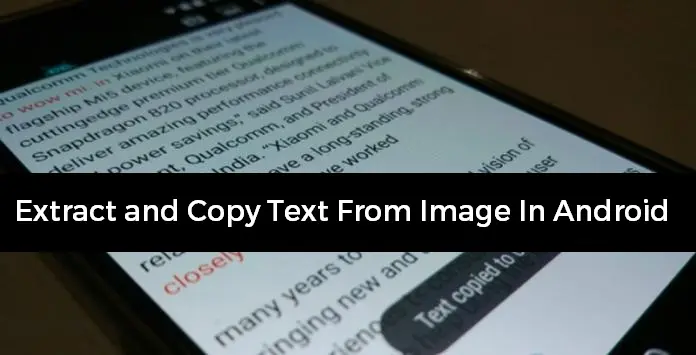
Got a photo of some notes, a receipt or a poster, and need the text from it?
Don't type it all out again.
In this guide, I'll show you five ways to copy text from any image on Android in a few taps. Google Lens works on almost any phone, and Circle to Search is the fastest option on newer ones.
When I first wrote this in 2016, you needed a separate app for this. I used Text Fairy, and it worked absolutely fine.
Today, this is built right into most Android phones.
Also Read: How to Use Google Lens in Google Photos on Any Phone
TL;DR
- Any Android phone: use Google Lens from the Google app, or from Google Photos.
- Pixel 6 or newer and many recent Galaxy phones: use Circle to Search. You don't need to save the image first.
- Pixel: tap "Select" in the Recents screen, then drag over the text.
- Samsung Galaxy: tap the yellow "T" button in the Gallery app.
- Prefer a separate app? Text Fairy is still on the Play Store.
Which Method Should You Use?
Pick the row that matches your phone.
| Your phone | Easiest way |
|---|---|
| Any Android phone with the Google app | Google Lens |
| Pixel 6 or newer, recent Samsung Galaxy and some other phones | Circle to Search |
| Google Pixel | The "Select" button in Recents |
| Samsung Galaxy | The yellow "T" button in Gallery |
| You prefer a separate app | Text Fairy |
How to Copy Text From an Image With Google Lens
Google Lens works on almost any Android phone. It's built into the Google app.
- Open the Google app.
- Tap the Lens icon (the camera) in the search bar.
- Point your camera at the text, or tap the gallery icon to pick a photo or screenshot.
- Tap "Select text", or just tap on the words.
- Drag the blue handles to pick the part you want, or tap "Select all".
- Tap "Copy".
Now paste it anywhere, like in WhatsApp, Google Docs or your notes. The exact button names can differ a little between phones and app versions.
Copy Text From a Photo in Google Photos
Already have the picture in Google Photos? Open it.
If Photos spots text, it often shows a suggestion to copy it. If not, tap the Lens button at the bottom and follow the same steps.
How to Copy Text With Circle to Search
This is the fastest way, because you don't even have to save the image.
Circle to Search works on select phones, including the Pixel 6 and newer and many recent Samsung Galaxy phones. If your phone has it, start here.
- Open the image, or any app with text on the screen.
- Touch and hold the Home button or the navigation handle at the bottom of the screen.
- Highlight the text you want by dragging your finger across it.
- Tap the option to copy it.
The best part? It works on text you normally can't select, like in a video or a screenshot.
Also Read: How to Translate Any Android App Into Your Language
How to Copy Text on a Pixel With the Select Button
Pixel phones have a hidden gem in the Recents screen.
- Open the app or image with the text.
- Swipe up and hold to open Recents (the screen that shows your open apps).
- Tap "Select" under the app's preview.
- Drag the handles over the text you want, then tap "Copy".
It only grabs what's visible on the screen, so scroll to the right part first.
How to Copy Text on a Samsung Galaxy With the T Button
Samsung added text extraction to its Gallery app with One UI 5.
- Open a photo with text in the Gallery app.
- Tap the yellow "T" button in the bottom-right corner.
- The text gets highlighted. Select what you want and tap "Copy".
Don't see the T button? Some Galaxy phones, especially cheaper models, may not have this feature.
It also only shows up on images where Gallery finds text. If it's missing, try Google Lens instead.
How to Copy Text With Text Fairy
Text Fairy, the app from my 2016 post, is still on the Play Store.
It's a separate scanner app. Pick an image, crop the part with text, and it gives you the text to copy.
It can also turn your scans into PDF files.
Use it if you'd rather not use Google's apps for this.
Also Read: How to Use Your Own Handwriting as a System Font
Can I Copy Text From a Website That Blocks Copying?
Yes.
Some websites and apps don't let you select their text. Take a screenshot, then use any method above on the screenshot.
If the text runs longer than one screen, take a full page screenshot on Android first and copy from that.
Tips for Better Results
- Good light, flat page. Shadows and curved pages cause mistakes.
- Crop to the text. Less clutter means better results.
- Check numbers and names. Text recognition is good, but not perfect. Always check phone numbers, prices and codes before you use them.
- Handwriting is hit and miss. Neat handwriting often works. Messy handwriting still trips these tools up.
- Think before scanning private documents. Google Lens and Circle to Search are Google services, so be careful with things like ID cards and bank papers.
Final Thoughts
On most Android phones, copying text from an image no longer needs a separate app.
If your phone has Circle to Search, start there. If not, Google Lens works on almost every Android phone.
Check the result before you use it, especially numbers and names. Then you won't have to type out long notes by hand again.
FAQs
How do I copy text from a picture on Android?
Open the picture in Google Photos, tap the Lens button at the bottom, then tap "Select text" and "Copy". Google Lens works on almost any Android phone.
Can I copy text from a screenshot on Android?
Yes. Every method in this guide works on a screenshot, including Google Lens and Circle to Search, which also works on text you can't normally select, like text in a video.
Which Android phones have Circle to Search?
Circle to Search works on select phones, including the Pixel 6 and newer and many recent Samsung Galaxy phones. If your phone doesn't have it, use Google Lens instead.
Why don't I see the T button in my Samsung Gallery?
Some Galaxy phones, especially cheaper models, may not have this feature. The T button only shows up on photos where Gallery finds text, so try Google Lens instead.
Still stuck? Tell me through the contact page.

Topics
Comments (6)
Comments are closed. Have a question about this article? Ask through the contact page.



There is a website called www.free-ocr.com. You should also try it :)
Superb !! Very helpful.
We can do this using Google keep. Xaif your whatsapp number to receive updates is not working.
We have stopped broadcast list :(
Thanks Xaif & Shubham habib
Your welcome