 TechVerge
Stuck in traffic and late for a meeting?
Instead of typing "5 more minutes" again and again, share your live location. Your friends (or your boss) can watch you get closer in real time.
The quick answer: open the chat, tap the attach icon (or the "+" on iPhone), choose "Location", then tap "Share live location". Pick how long it runs and send.
When I first wrote this in October 2017, live location was brand new. You had to join WhatsApp Beta to get it, and some people unlocked it early with root tricks.
Not anymore. Today it's a normal part of WhatsApp on Android and iPhone, so I've updated this guide to match how it works now.
In this guide, I'll cover what live location is, how to share it on each phone, how long it runs, and how to stop sharing.
Also Read: How to Revoke WhatsApp Sent Messages With Delete for Everyone
TL;DR
- Android: open the chat, tap the paper clip, then "Location" → "Share live location".
- iPhone: open the chat, tap "+", then "Location" → "Share live location".
- Time limit: you pick how long it runs. It stops by itself when the time is up, and you can stop it earlier.
- Stop sharing: tap "Stop sharing" in the chat, or stop all chats at once under "Privacy" → "Live location".
What Is WhatsApp Live Location?
Live location shares where you are, in real time, with one person or a whole group. As you move, your dot on their map moves too.
It's also end-to-end encrypted, so only the people in that chat can see it.
Live Location vs. Current Location at a Glance
| Option | What it does | Follows you as you move? |
|---|---|---|
| "Share live location" | Keeps updating your position for the time you choose | Yes |
| "Send your current location" | Sends one fixed pin of where you are right now | No |
The one you want for a trip or a late arrival is "Share live location". The other option drops a single pin, which is all you need when you only want to say where you are once.
How to Share Live Location on WhatsApp
Requirements
- WhatsApp updated from the Play Store or the App Store.
- Location (GPS) and the internet turned on.
- Location permission for WhatsApp. It asks the first time you share.
- Your main phone. WhatsApp says live location isn't supported on a second phone linked to your account.
On Android
- Open the chat or group you want to share with.
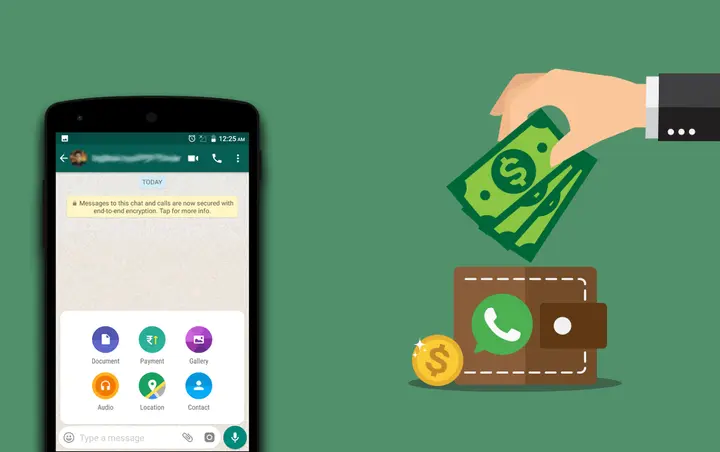
- Tap the attach icon (the paper clip) → "Location".
- Tap "Share live location". If WhatsApp shows a notice, tap "Continue".

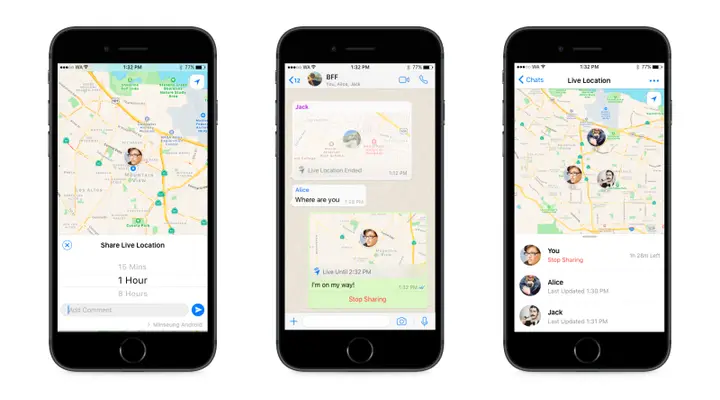
- Choose how long you want to share your location.

- Add a comment if you like, then tap the send button.
Keep your GPS and internet on, and WhatsApp can follow you until the time runs out.
On iPhone
- Open the chat or group you want to share with.
- Tap the "+" icon → "Location" → "Share live location". Tap "OK" if WhatsApp asks.
- Choose how long you want to share your location.
- Tap the send button.
How Long Can You Share Your Live Location?
When I first wrote this in 2017, you could pick 15 minutes, 1 hour or 8 hours.
Most guides still list the same three. WhatsApp's own help page only says to pick a length of time, so go with the options your app shows.
Need it for 3 hours? The old trick still works: pick a longer time and stop sharing yourself when you get there.
How to Stop Sharing Live Location
In One Chat
- Open the chat.
- Tap "Stop sharing", then confirm with "Stop" (on iPhone, "Stop sharing" again).

Stopping in one chat doesn't stop the others. For that, use the all-chats option below.
In All Chats at Once
- Android: on the "Chats" tab, tap the three-dot menu → "Settings" → "Privacy" → "Live location" → "Stop sharing" → "Stop".
- iPhone: tap "You" (it's "Settings" on older versions) → "Privacy" → "Live location" → "Stop sharing", and confirm.
This screen is also the best place to check if you left a live location running somewhere. It's easy to forget one.
What Do People See After You Stop?
Your location stops updating right away.
But people in the chat still see the first location you shared, as a small map. If they tap it, they see the last place your location was updated.
How to Turn Off WhatsApp's Location Access
Don't want WhatsApp to use your location at all? Turn off its location access in your phone's settings.
- iPhone: open "Settings" → "Privacy & Security" → "Location Services" → "WhatsApp" → "Never".
- Android: open your phone's "Settings" → "Apps" → "WhatsApp" → "Permissions" → "Location" and choose "Don't allow". The menu names change a little from phone to phone.
You can always switch it back on the next time you need it.
Is It Safe to Share Your Live Location?
Live location is handy, but it's still your location.
- Only share it with people you trust.
- Pick the shortest time that does the job.
- Be careful in big groups. The catch worth flagging is that everyone in the group can see it.
- Keeping GPS on for hours eats your battery faster.
Also Read: How to Make a Video Call on WhatsApp (1:1 and Group)
Also Read: How to Use WhatsApp as Your Personal Notes and Bookmarks App
Final Thoughts
When I first wrote this, I compared live location to Snapchat's map that shows where your friends are. The big difference is that WhatsApp stops sharing by itself when the time you picked runs out.
It's a good fit when you're late for a meeting, meeting friends in a crowded place, or heading home at night and want your family to know you're safe.
Just remember that everyone in the chat sees your location while it runs. Pick the shortest time that does the job.
FAQs
How do I share my live location on WhatsApp?
Open the chat, tap the attach icon on Android or the "+" on iPhone, choose "Location", then tap "Share live location". Pick how long it runs and send it.
How long can I share my live location on WhatsApp?
When I first wrote this, the options were 15 minutes, 1 hour and 8 hours. WhatsApp's own help page only says to pick a length of time, so use the options your app shows.
How do I stop sharing my live location in all chats?
Go to "Privacy" → "Live location" in WhatsApp's settings, then tap "Stop sharing" and confirm. On Android, start from the three-dot menu on the "Chats" tab, and on iPhone, start by tapping "You".
Can people still see my location after I stop sharing?
Your location stops updating right away. The chat keeps a small map of it, and tapping that map shows the last place your location was updated.
Still stuck? Tell me through the contact page.