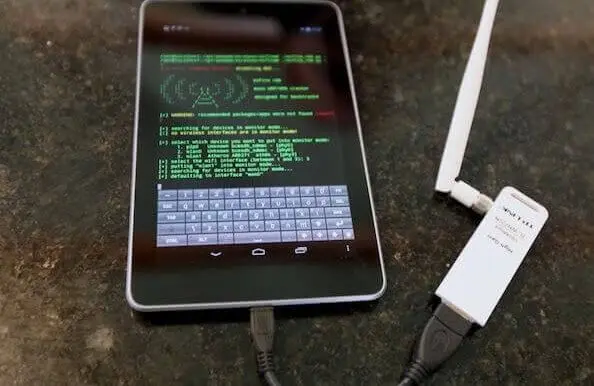
Do you want to do more with your Android phone than the average user?
The thing I love about Android is that you're free to make your phone your own.
That hasn't changed. What has changed is how you do it.
When I first wrote this list, back when this site was still called Xtreme Tricks, most "hacks" needed root or a sketchy app. Today, Android has most of them built in.
The short answer: none of the nine hacks below needs root, and most are already on your phone. So I've rewritten the whole list, and I'll show you each hack step by step.
Also Read: Worst Apps for Android: 6 Types of Apps You Should Avoid
TL;DR
- Fastest win: set the animation scales to "Animation scale .5x" in Developer options, or choose "Animation off".
- Ad blocking without root: use Private DNS with
dns.adguard-dns.com. Set it back to "Automatic" if something breaks. - Battery: "Battery Saver" is built in, so you don't need a battery app.
- Skip: the old root-only tricks, modded apps, and anything that cheats or breaks into someone else's network.
Cool Android Hacks at a Glance
| Hack | Where to find it | Needs an app? |
|---|---|---|
| 1. Faster animations | Developer options | No |
| 2. Fake GPS location | Developer options | Yes, a mock location app from Google Play |
| 3. Ad blocking with Private DNS | Settings → Network & internet → Private DNS | No |
| 4. Switch off bloatware | Settings → Apps | No |
| 5. Linux terminal | Developer options → Terminal app | No |
| 6. Hidden apps in Private space | Settings → Security & privacy → Private space | No |
| 7. Wi-Fi password QR code | Settings → Network & internet → Internet | No |
| 8. Screen recording and scrolling screenshots | Quick settings and power buttons | No |
| 9. Longer battery life | Settings → Battery | No |
How to Unlock Developer Options on Android
A few hacks on this list live in a hidden menu called Developer options. You can unlock it in a few taps.
- Open "Settings" → "About phone". On Samsung, go one step further to "Software information".
- Tap "Build number" seven times.
- You'll see "You are now a developer!"
Now go back. You'll find "Developer options" in Settings, usually under "System".
Don't change random settings in there. Stick to the ones I mention below.
Cool Android Hacks You Can Try Without Root
Each hack below works without root.
1. Make Your Phone Feel Faster
This is my favourite one.
Your phone isn't actually faster, but it feels like it. Opening and closing apps just happens quicker.
- Open "Developer options".
- Scroll to the drawing section.
- Set "Window animation scale", "Transition animation scale" and "Animator duration scale" to "Animation scale .5x".
Want it even snappier? Choose "Animation off".
Some people love it, and some find it too sudden.
2. Fake Your GPS Location
This was number one on my old list, and you still don't need root.
Android lets you pick an app that feeds a fake location to the rest of the phone. It's meant for developers testing their apps.
- Install a mock location app from Google Play.
- Open "Developer options" → "Select mock location app".
- Choose the app you installed, and set a location in it.
Just don't use it to cheat in location games. That ruins it for everyone else.
3. Block Ads on Your Whole Phone With Private DNS
In 2017, I told you to use AdAway, which needed root. Not anymore.
Android has a Private DNS setting. Point it at an ad-blocking DNS service, and ads get blocked in most apps and browsers.
- Open "Settings" → "Network & internet" → "Private DNS". On other phones, search Settings for "Private DNS".
- Choose "Private DNS provider hostname".
- Type
dns.adguard-dns.comand tap "Save".
That's AdGuard's free public DNS. If a website or app breaks, set it back to "Automatic".
4. Get Rid of Bloatware Without Root
My old list told you to root your phone to remove system apps. You can't fully uninstall most preinstalled apps without root, but you can switch them off.
- Open "Settings" → "Apps" and tap the app.
- Tap "Disable" if you see it, or "Uninstall" if the app allows it.
A disabled app stops running and disappears from your app drawer. You can turn it back on any time from the same screen.
Don't disable apps you don't recognise, like system services. Stick to things like extra app stores and preinstalled games.
5. Run Linux on Your Phone
My old list used an app called Linux Deploy for this. Today, Android has its own Linux terminal.
It's still marked experimental, and it only shows up on phones that support it.
- Open "Developer options".
- Turn on "Linux development environment".
- Open the new "Terminal" app and tap "Install".
The first setup downloads the Linux system, so use Wi-Fi. Then you've got a real Linux command line on your phone.
Also Read: How to Run a Virtual Machine on Android (and What to Avoid)
6. Hide Apps in Private Space
Want to hide some apps from people who borrow your phone?
Android 15 added Private space. It's a separate, locked area for apps.
When it's locked, those apps are hidden from your app drawer, recent apps, notifications and settings.
- Open "Settings" → "Security & privacy" → "Private space".
- Follow the steps to set it up. You can use your screen lock or a separate lock.
- Install the apps you want to hide from inside Private space.
The apps in there are separate copies. Your existing apps and their data don't move in.
7. Share Your Wi-Fi Password With a QR Code
A friend wants your Wi-Fi password, and you can't remember it?
- Open "Settings" → "Network & internet" → "Internet".
- Tap your Wi-Fi network, then "Share".
- Confirm it's you.
Your phone shows a QR code. Your friend scans it with their camera and connects.
On many phones, the password is written right under the code too.
Also Read: How to See a Saved Wi-Fi Password on Android (No Root)
8. Record Your Screen and Take Scrolling Screenshots
No app is needed for either one.
To record your screen: swipe down twice from the top, tap "Screen record", choose your options and tap "Start". If the tile isn't there, tap the edit button and drag it in.
To take a scrolling screenshot: press Power and Volume down together, then tap "Capture more". It works on Android 12 and newer, on most screens that scroll.
9. Make Your Battery Last Longer
My old list said Greenify was the best battery app. Today, Android does that job by itself.
Go to "Settings" → "Battery" and turn on "Battery Saver" when you need it.
You don't need a battery app at all. I explain why in my worst Android apps post.
What I Removed From My Old List
Some tricks from my old list are gone for good. Here's what I dropped and why.
- Lucky Patcher for "free gems and coins". That's cheating developers out of their money, and modded apps are a security risk.
- WPA Tester and WPS Connect. Using them on a Wi-Fi network that isn't yours is breaking into someone else's network. Don't.
- Android ID changer. It was mostly used to cheat refer-and-earn apps.
- TubeMate. Downloading YouTube videos with outside apps goes against YouTube's terms. YouTube Premium has offline downloads built in.
- RAM expanders. They never added real RAM.
- Turbo VPN. It's one of the VPN apps a 2025 report linked to a sanctioned Chinese company. See my worst apps post for safer choices.
- Build.prop editing and root-only tricks. They're riskier on modern phones, and most of what they did is now built in.
Final Thoughts
None of these hacks needs root, and most are already on your phone. The fastest wins are the faster animations and Private DNS.
Everything else is situational. Use Private space to hide apps, a QR code to share Wi-Fi, and Battery Saver when your battery runs low.
Menu names can differ by phone brand and Android version. If you can't find a setting, search Settings for its name.
FAQs
How do I unlock Developer options on Android?
Open Settings → About phone (on Samsung, Software information), and tap Build number seven times. Then go back to Settings and open Developer options.
Do I need root for these Android hacks?
No, every hack in this list works without root. The fake GPS hack needs a mock location app from Google Play.
How do I block ads on Android without root?
Open Settings → Network & internet → Private DNS, choose Private DNS provider hostname, and type dns.adguard-dns.com. Set it back to Automatic if a website or app breaks.
Can I hide apps on Android without a third-party app?
Yes. Android 15 added Private space, where apps are hidden from your app drawer, recent apps, notifications and settings while it's locked.
Still stuck? Tell me through the contact page.

Topics
Comments (10)
Comments are closed. Have a question about this article? Ask through the contact page.


Oh That's awesome !! nice post bro. write about Which laptop/PC is best and what shoud we have to check before buying it. All information and features which is divided by range : 20000,30000 /- waiting :)
I will surely look further into this topic...
whatsapp hack trick he to batao
I will be posting it soon stay tuned
wow cool man
Thank you
Kya mai lucky patcher aur busy box ka use krke clash of clan game ke unlimited gems kr sakta hoon ya nahi?
No you can't
Ku kya koi aur tareeka hai clash of clan cheat krne ka
There is no such trick to hack Coc